
Show the whole picture in a vertical frame
Some videos can’t be cropped: a wide landscape, a slide, a whiteboard, a game screen, or a shot where the action covers the whole width. Blur Fill keeps the entire 16:9 picture and fills the empty space above and below with a soft, blurred, darker copy of the same video. It looks intentional and keeps the colours of the scene, which plain black bars don’t.
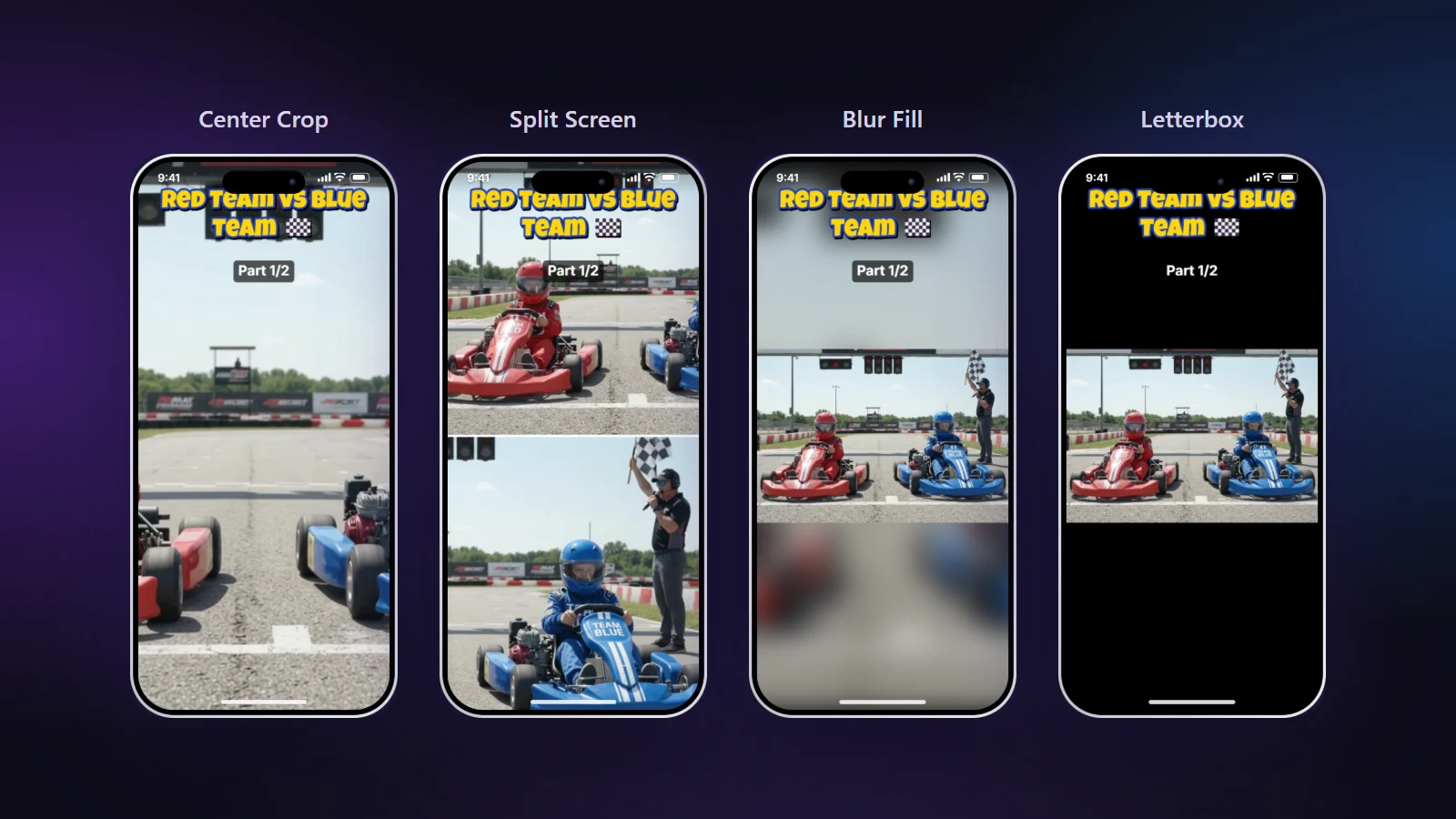
Blur Fill, Letterbox or Color Fill?
| Layout | Background | Use it when |
|---|---|---|
| Blur Fill | Blurred copy of the video | You want a full-screen look without cropping |
| Letterbox | Black | Cinematic footage, or when you add titles in the empty space |
| Color Fill | Your own colour | Branded content with a channel colour |
Settings that make it look good
- Blur strength: higher values give a smoother background that doesn’t compete with the video.
- Darken background: 15–30% makes the main picture and white text stand out.
- Zoom: enlarges the video and trims a little from the sides, a good middle ground between a full crop and a full fit.
- Video position: move the picture to the top or bottom to leave one large space for a title.
Tip: the empty areas above and below the video are perfect for a big title and a “Part 1/3” label. Nothing important is covered by the app buttons there.
How to make it
- Open your video. This page starts in Blur Fill.
- Adjust blur, darkness, zoom and position in the Framing tab.
- Add a title in the Text tab and place it in the space above the video.
- Make the Short. It is exported at 1080×1920.