Free · No upload · No watermark

Turn any video into TikTok videos

Reframe a wide or long video for TikTok: full-screen 9:16, the action kept in view, text placed clear of TikTok’s buttons, and long videos cut into a series of parts. Made on your own computer, with no watermark.

  • Processed in your browser
  • No account needed
  • 1080×1920 MP4 export
How it works ↓

How it works

  1. 1Add your video

    A wide recording or a long video; 4K is fine. Nothing is uploaded while you work.

  2. 2Keep the action in view

    Use Center Crop or AI Smart Crop, place a title clear of the TikTok side buttons, and cut a long video into a series.

  3. 3Save and post

    Download the MP4 parts and upload them to TikTok one after the other.

Why landscape videos look wrong on TikTok

TikTok is built for full-screen vertical video. A 16:9 clip uploaded as-is plays as a thin band in the middle of a tall screen, with large empty areas above and below, and viewers scroll past it in under a second. Converting to 9:16 fixes that, but only if the important part of the picture ends up inside the tall frame.
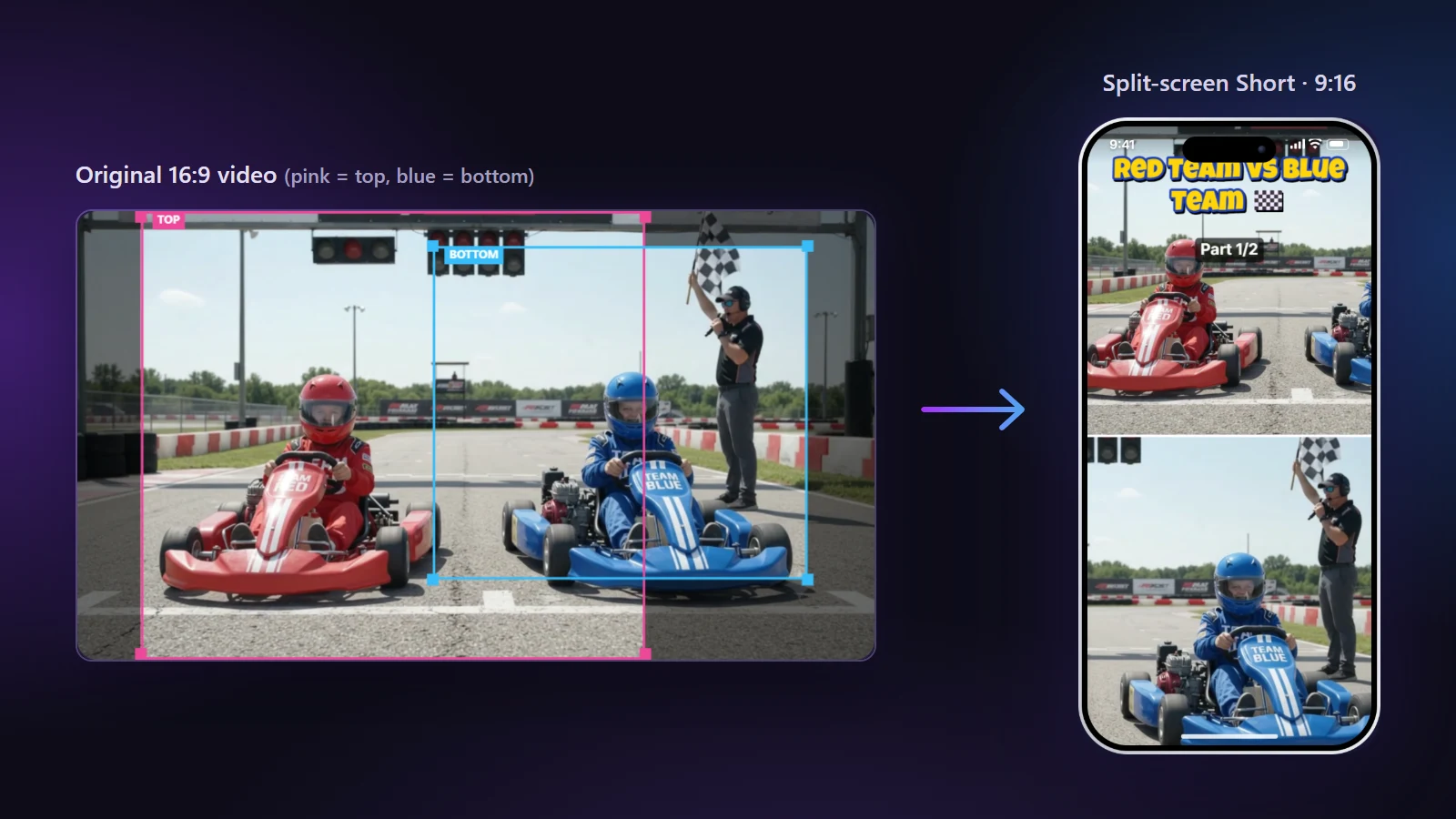
A wide video converted into a vertical 9:16 split-screen clip
A wide go-kart start turned into a 9:16 split screen: both drivers stay on screen, one per half.

How to make a TikTok from any video

  1. Open your video. Any wide or long video: a gameplay recording, a vlog, a match, a race. Nothing is uploaded.
  2. Pick the layout. Center Crop for one person, Split Screen for two, Blur Fill when the whole picture matters.
  3. Keep the action in view. Switch on AI Smart Crop to follow people as they move, and fix any moment by dragging.
  4. Hook in the first second. Trim the start so the clip opens on the action, not on a slow lead-in.
  5. Add a big title. Turn on App buttons above the phone preview to keep it clear of TikTok’s side buttons and caption.
  6. Export and post. Each clip is a 1080×1920 MP4 without a watermark.

Where TikTok covers your video

TikTok places its like, comment, save, share and sound buttons in a column on the right, the account name and caption at the bottom, and the “Following / For You” tabs at the top. Keep faces and titles in the middle of the frame and a little left of centre. Our safe-zones guide shows the areas to avoid; the same rules work for TikTok, Reels and Shorts.

Turning one long video into a TikTok series

TikTok accepts long uploads, but short clips are easier to watch to the end. A common pattern is a series: cut a long video into parts of 30–90 seconds, label them “Part 1”, “Part 2”, and post them over a few days. In the Clips tab choose Every… with your length, move each cut to a natural break, and add a part number in the Text tab.

Using the same video on every app

A 9:16, 1080×1920 MP4 is the common format for TikTok, YouTube Shorts, Instagram Reels and Facebook Reels, so one export can be posted everywhere. Add trending sounds inside the TikTok app after uploading; music added there is licensed for TikTok.

Frequently asked questions

What size should a TikTok video be?
9:16 vertical at 1080×1920 pixels. NineSixteenAI exports this by default as an MP4 that TikTok accepts directly.
How do I convert a landscape video for TikTok without cutting people off?
Use AI Smart Crop so the frame follows the people, or Split Screen when two people are far apart. Blur Fill keeps the whole wide picture if nothing can be cropped.
Does the exported video have a watermark?
No. Your clips are exported without any watermark or logo, unless you add your own logo in the Brand tab.
Can I split a long video into several TikToks?
Yes. In the Clips tab choose “Every…” (for example 60 seconds), “Equal parts” or your own times. Every part becomes a separate vertical MP4 with an optional “Part 1/3” label.
Can I add TikTok’s trending sounds here?
Add trending sounds in the TikTok app after uploading; they are licensed for use there. In NineSixteenAI you can keep the original sound, add your own music or record a voiceover.
Where should I put text so TikTok’s buttons don’t cover it?
Away from the right edge and the bottom fifth of the screen. Switch on “App buttons” above the phone preview to see the covered areas while you place your text.
Can anyone see the video I convert for TikTok?
Only you. The conversion happens on your own computer, and the file is shared only when you choose to post it on TikTok.
Is NineSixteenAI made by TikTok?
No. It is an independent tool and is not affiliated with TikTok or ByteDance.