
Converting 16:9 to 9:16 sounds like a rotation, but it is not. A 16:9 frame is wide and a 9:16 frame is tall, and the picture inside does not change shape to suit. Something has to give: part of the picture is dropped, shrunk, or split. Knowing the numbers makes the choice easier.
The numbers
| Source | Size | 9:16 window that fits inside | Share of the width you keep |
|---|---|---|---|
| Full HD | 1920 × 1080 | about 608 × 1080 | about 32% |
| 4K | 3840 × 2160 | about 1215 × 2160 | about 32% |
In both cases a straight crop keeps roughly a third of the width. The other two thirds are cut away. If the people or the action are not all inside that third, a plain crop will lose them.
Why a 4K source stays sharp
The export is normally 1080 × 1920. A crop of a Full HD video is only about 608 pixels wide, so it has to be enlarged to 1080 and looks soft. A crop of a 4K video is about 1215 pixels wide, already more than the export needs, so it is scaled down and stays crisp. That is one reason a camera that records in 4K is useful even when you only publish vertical video.
Three ways to convert
- Crop. Fill the tall frame with the part of the picture that matters. Biggest picture, most cut away.
- Fit. Keep the whole 16:9 picture, centred, and fill the space above and below with a blurred copy, bars or a colour. Nothing is lost, but the picture is small, about a third of the height.
- Split. Show two parts of the frame stacked, for example two people far apart. Each part is larger than a fit would make it.
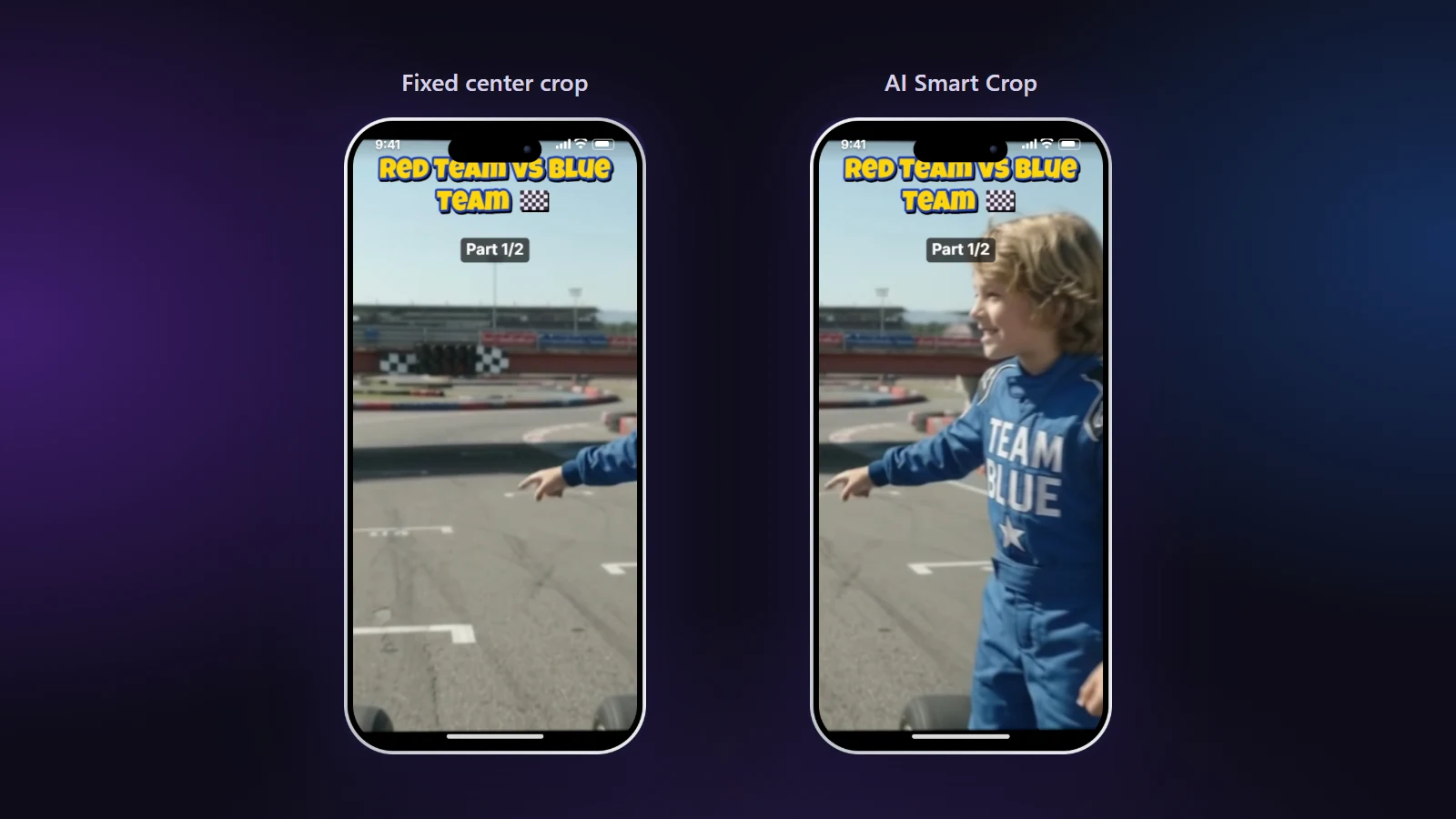
Choosing quickly
| Your video | Convert by |
|---|---|
| One person, mostly in the middle | Crop |
| One person who moves around | Crop that follows them (AI Smart Crop) |
| Two people far apart | Split |
| A slide, a screen, a landscape | Fit with a blurred background |
Steps in the editor
- Open the video in the converter. It reads the size and shows the vertical preview next to the original.
- Pick the layout in the Framing tab.
- For a crop, check the purple box in the original video: that is exactly what will be in the Short.
- Export at 1080p. If your source is 4K you do not need to lower it; the export is scaled down for you.
Things that go wrong
- Stretching. Squeezing a wide picture into a tall one makes everyone thin. Never use a stretch; crop or fit instead.
- Hard black bars. They work, but they make the picture look small. A blurred background looks more intentional.
- Cropping a low-resolution video. The result is soft. Use a higher-resolution source if you have one.
For choosing between the layouts in detail, read crop, split, blur or letterbox. To follow a moving subject, see AI Smart Crop.