
A landscape video is wider than it is tall. A portrait video, the shape of a phone held upright, is the other way round. Making one from the other is a design decision, not a setting. This guide shows the three results that look right and how to pick between them.
Why not just rotate the video?
Rotating turns the whole picture on its side, so people lie down. It only helps when a phone recorded a portrait scene while held sideways. For a normal landscape video you need to change the frame, not the angle.
Three portrait results
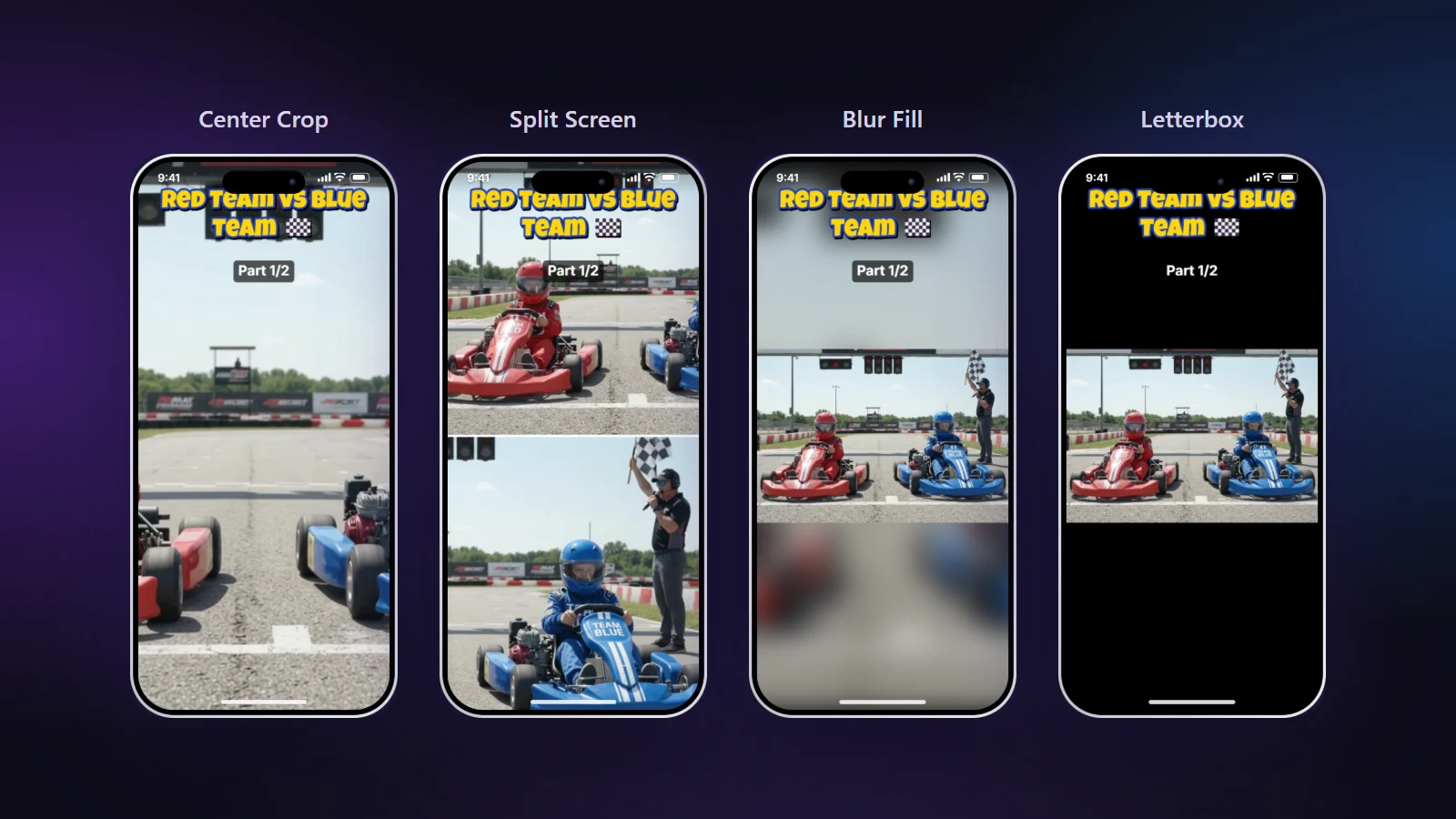
1. A tall crop
The tall frame shows one part of the landscape picture. It is the most immersive result: the subject fills the screen. Use it when one person or thing is the whole story.
2. A fitted picture on a soft background
The full landscape picture sits in the middle of the tall frame and the rest is filled with a blurred copy of the video, plain bars, or a colour. Nothing is lost. Use it when the edges matter, as with slides, games and scenery.
3. A split
Two parts of the picture are stacked, one above the other. Use it when two people are far apart in the frame. Each one gets a useful share of the screen.
A simple rule
- If you can say "this video is about one thing", crop to that thing.
- If you say "this video is about two people", split.
- If you say "all of this matters", fit it.
Phone clips that are already sideways
A phone usually records the orientation it was held in. If your clip plays sideways after it was recorded upright, the file's rotation flag may not be read by an editor. Check the original video in the preview: if it is rotated, the tall result will be wrong too. Fix the orientation in your phone's gallery first.
Do it in the browser
- Open your landscape video. The preview shows the portrait result beside the original.
- Choose the layout in the Framing tab: Center Crop, Split Screen, Blur Fill, Letterbox or Colour Canvas.
- Check the frame at the start, the middle and the end of the video. Subjects move.
- Export a 1080 × 1920 MP4.
Mistakes to avoid
- Stretching a wide picture to fill the tall one.
- Choosing a crop for a scene with several people who spread out.
- Choosing a fit for a close-up of a face, which leaves it small.
- Putting text where the app interface will cover it.
Try it with the blur background tool or the horizontal to vertical converter. If you are deciding between layouts, see how Blur Fill works.