
Cropping a video to 9:16 means choosing a tall window inside a wider picture and keeping only what is in it. It is the fastest way to fill a vertical screen, and the one that needs the most care, because everything outside the window is gone.
What you are choosing
You are choosing two things: where the window sits (left to right) and how big it is (zoom). At zoom 100% the window is as tall as the video. Zooming in makes it smaller, so you see less of the scene but the subject looks bigger.
Step by step
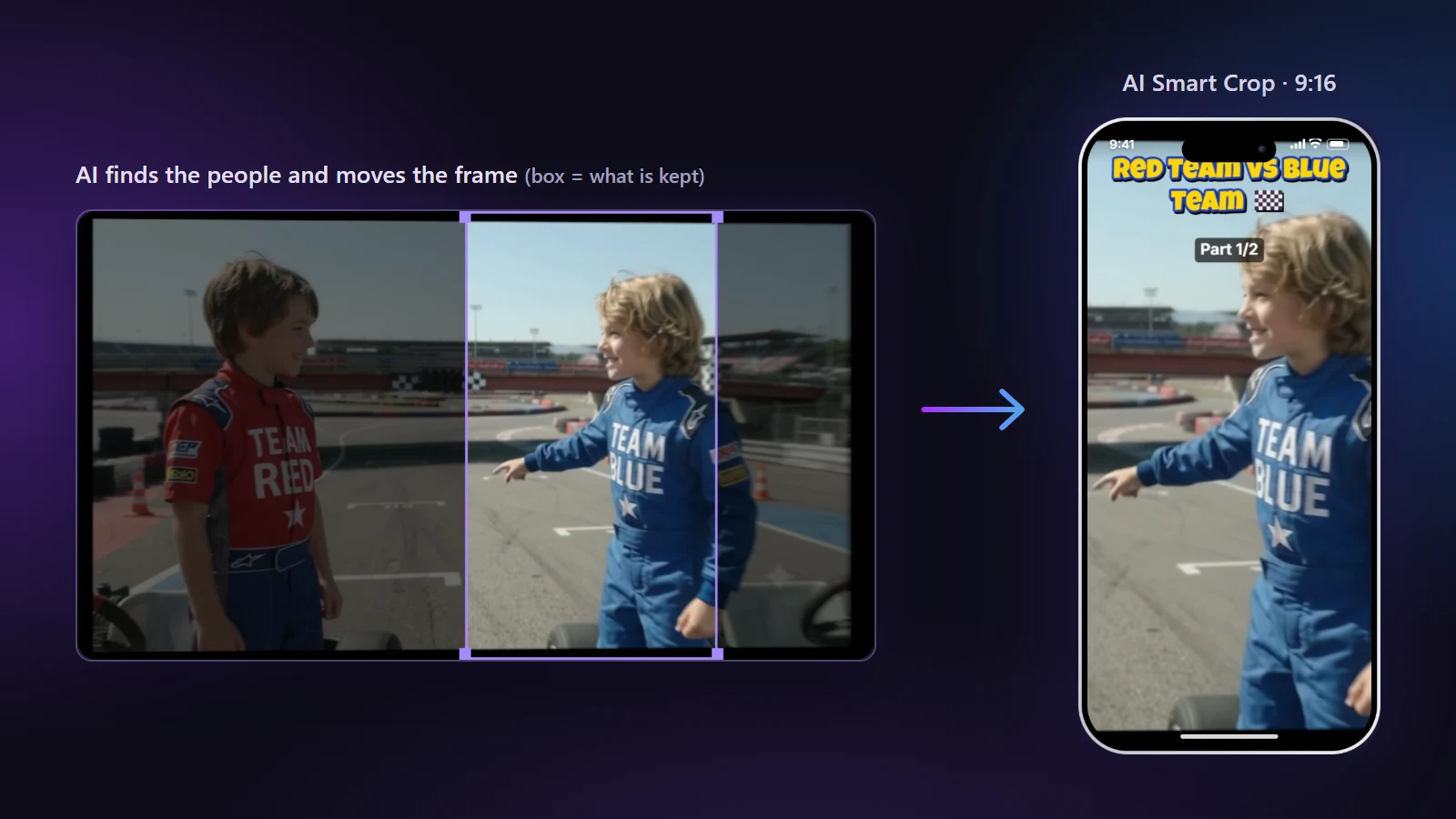
- Open the video. The editor shows the vertical preview next to the original, with a purple box on the original showing what is kept.
- Choose Center Crop in the Framing tab.
- Move the box. Drag it over the subject, or press Left, Center or Right under the picture for a quick start.
- Adjust zoom. Use the Zoom slider, or hold Ctrl and scroll over the original.
- Scrub through the video. A box that is right at the start can be wrong halfway through.
- Export. The result is 1080 × 1920 by default.
Framing that looks right
- Leave headroom. A small gap above the head looks natural. Cutting the top of the head looks like a mistake.
- Mind the eyes. Place them about a third of the way down the frame, not in the middle.
- Look-room. Leave more space in the direction the person is facing or moving.
- Avoid the safe-zone edges. Keep faces and text clear of the areas the app interface covers.
When the subject moves
A single fixed box fails when the person walks. You can move the box at several points, or let AI do it. AI Smart Crop moves the box with the person for you and lets you correct any moment by hand. See the feature page.
How much quality do you lose?
Cropping removes pixels, so the picture is enlarged back to the export size. From a 4K source the loss is small, because the cropped area is still wider than 1080 pixels. From a Full HD source the picture is enlarged by about 1.8 times and is softer. Zooming in further makes this stronger.
Common mistakes
- Cropping once at the start and not checking later.
- Zooming in so far that the picture looks blocky.
- Cutting through a person at the edge of the box, such as half a face.
- Forgetting that two people far apart do not fit one box. Use a split instead.
Open the AI auto reframe tool to crop with AI, or read the 16:9 to 9:16 guide for the numbers.