
From one long video to a series of Shorts
A long video usually has several Shorts hiding in it. A two-minute race has a start, an overtake and a finish. A ten-minute vlog has five or six moments that work on their own. This page opens the editor set up for exactly that: Center Crop, and the video cut into 60-second parts, so you can see the whole series straight away and adjust from there.
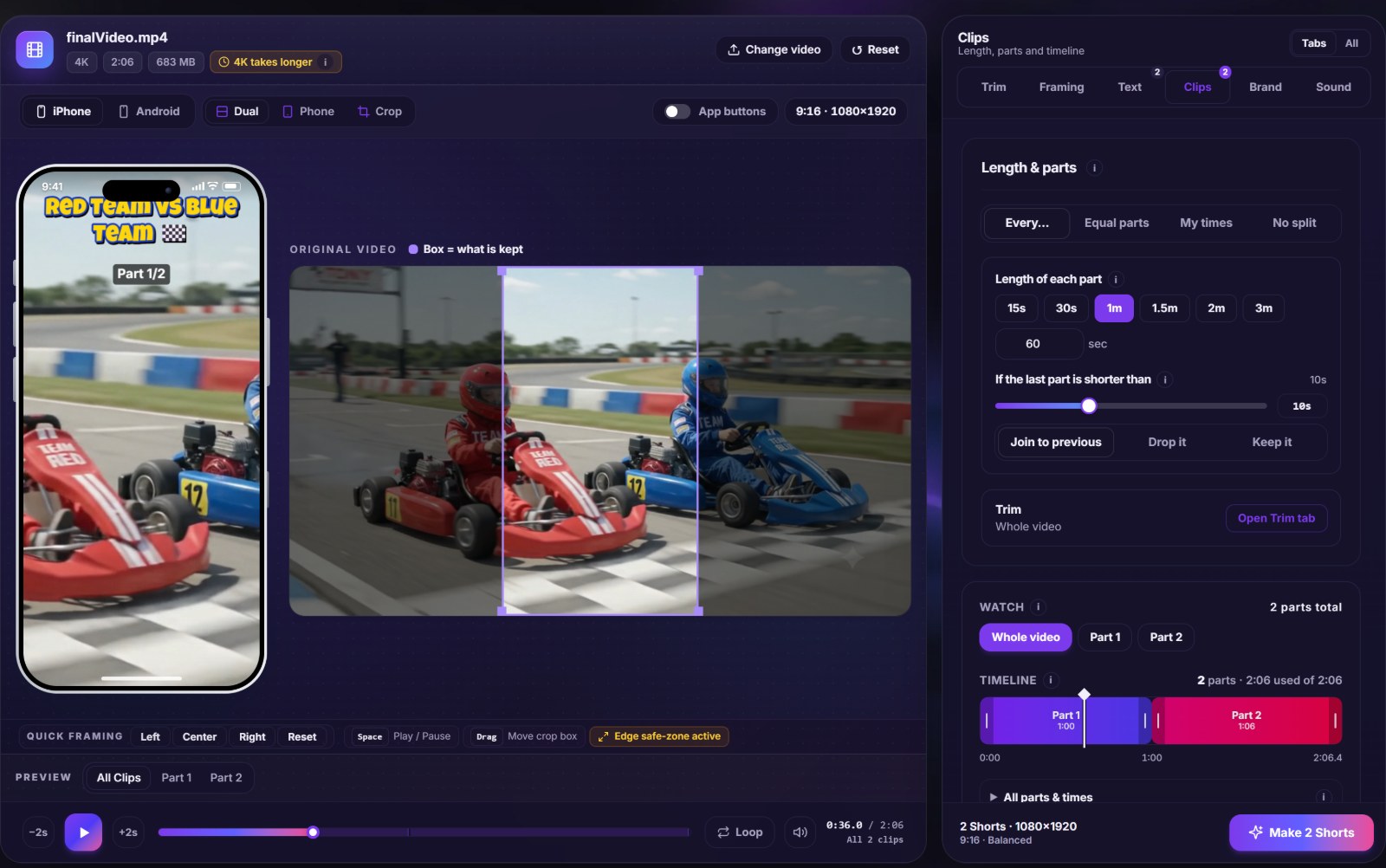
Step by step
- Open the long video. Any length works. Nothing is uploaded, so a large file opens about as fast as a small one.
- Trim the ends. If the recording starts with you setting up the camera, cut it in the Trim tab. AI Auto-trim can spot a black, frozen or silent start and end for you.
- Check the parts. The timeline shows every part. Drag an edge to move a cut so it lands between two moments, not in the middle of one.
- Decide about the leftover. If the last part would only be a few seconds long, join it to the one before, drop it, or keep it.
- Frame each part. Use AI Smart Crop, drag the box yourself, or switch to Split Screen when two people share the scene.
- Add a part label. "Part 1/3" near the top tells people there's more to watch.
- Make the Shorts and post them in order, a few hours or a day apart.
How long should each Short be?
YouTube accepts Shorts up to three minutes now, but a longer Short isn't automatically a better one. What counts is whether people watch to the end. As a rough guide, 30 to 60 seconds suits action clips, and 60 to 90 seconds suits a small story with a beginning and an end. How long should a Short be? goes into choosing the cut points.
A real example
Our 2:06 go-kart video split into two parts: 0:00 to 1:00, and 1:00 to 2:06, because the leftover six seconds were joined to the second part. We then moved the second cut a few seconds so Part 2 opens on the karts entering a tunnel instead of the tail end of a corner. The full walkthrough is in our go-kart case study.
What the file looks like
| Setting | What NineSixteenAI exports |
|---|---|
| Shape | 9:16, vertical |
| Size | 1080×1920, with 720p and 540p if you want smaller files |
| Format | MP4 (H.264 video, AAC sound) |
| Frame rate | The same as your original video |
For the reasons behind these numbers, see the YouTube Shorts size and specs guide.