
Split Screen builds one vertical picture from two parts of the same wide video. The top half follows one person, the bottom half follows another, and each half is zoomed in on its own subject. It exists for the shot that a normal crop cannot save: two people standing far apart in a wide frame.
The problem it solves
A 9:16 frame is narrow. If two people are on opposite sides of a 16:9 shot, a crop can hold one of them or the empty space between them, never both. Shrinking the whole shot to fit leaves two tiny people in a sea of black or blur. Stacking the two subjects puts each one at a useful size and gives the viewer both faces, which matters for anything where the reaction is the point.
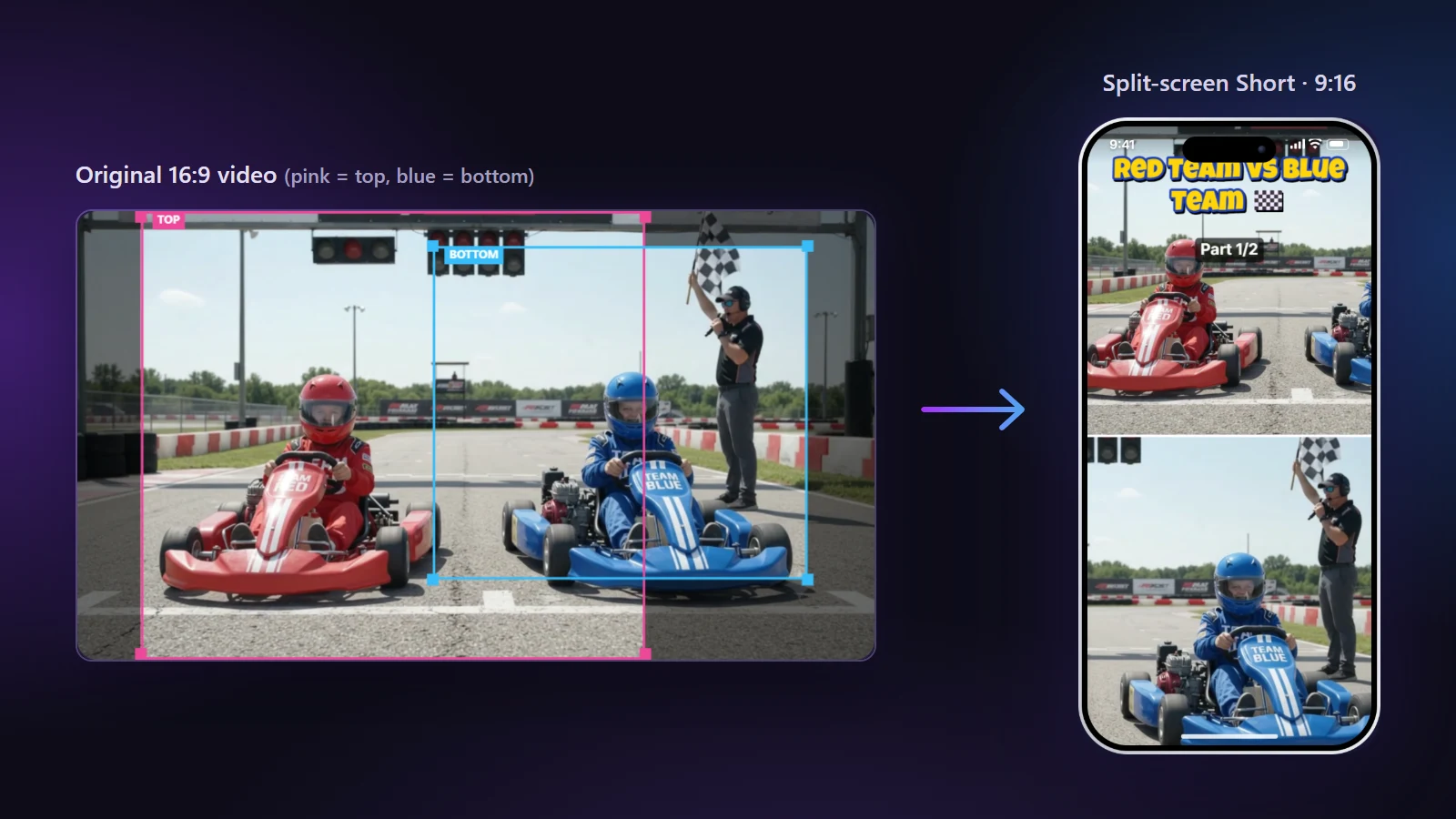
How the two halves are chosen
- Press Find the 2 people with AI. The scan runs in your browser and looks for people through the video.
- The tool picks two subjects and draws a pink box for the top half and a blue box for the bottom half on the original video.
- You can drag either box, zoom it with the plus and minus buttons, or accept the result as it is.
If the scan finds only one person, the top half keeps that person and the bottom half shows the wider scene around them, so you still get a useful picture.
Where it works best
- Two competitors: karts, runners, game players, chess.
- Conversation across distance: an interviewer and a guest, two people on a sofa, a podcast table.
- Reactions: the speaker on top and the listener below, so the reaction is never cut off.
- Before and after: the same person in two places of one wide shot.
When another layout is better
If one person is the whole story, use Smart Crop. If nothing may be cut off, as with a slide or a landscape, use Blur Fill. A comparison of all five layouts is in the guide on crop, split, blur or letterbox.
Details that make it look professional
- Keep the halves balanced. Aim for heads at a similar height in both halves; the red divider line is a good place to check.
- Leave room for text. A title near the top covers the top person's head if you are not careful. Use the safe-zone overlay.
- Switch layouts mid-video. Start with Split Screen while two people talk, then change to a Center Crop when only one is left.
Common mistakes
- Letting a half show an empty chair because the person left. Check the timeline of the preview, not only the first second.
- Zooming both halves so far that faces lose detail on a 1080p export.
- Using it for a single person. It works, but a fixed split shows the same face twice and wastes the screen.
Try it with the split screen video maker.