
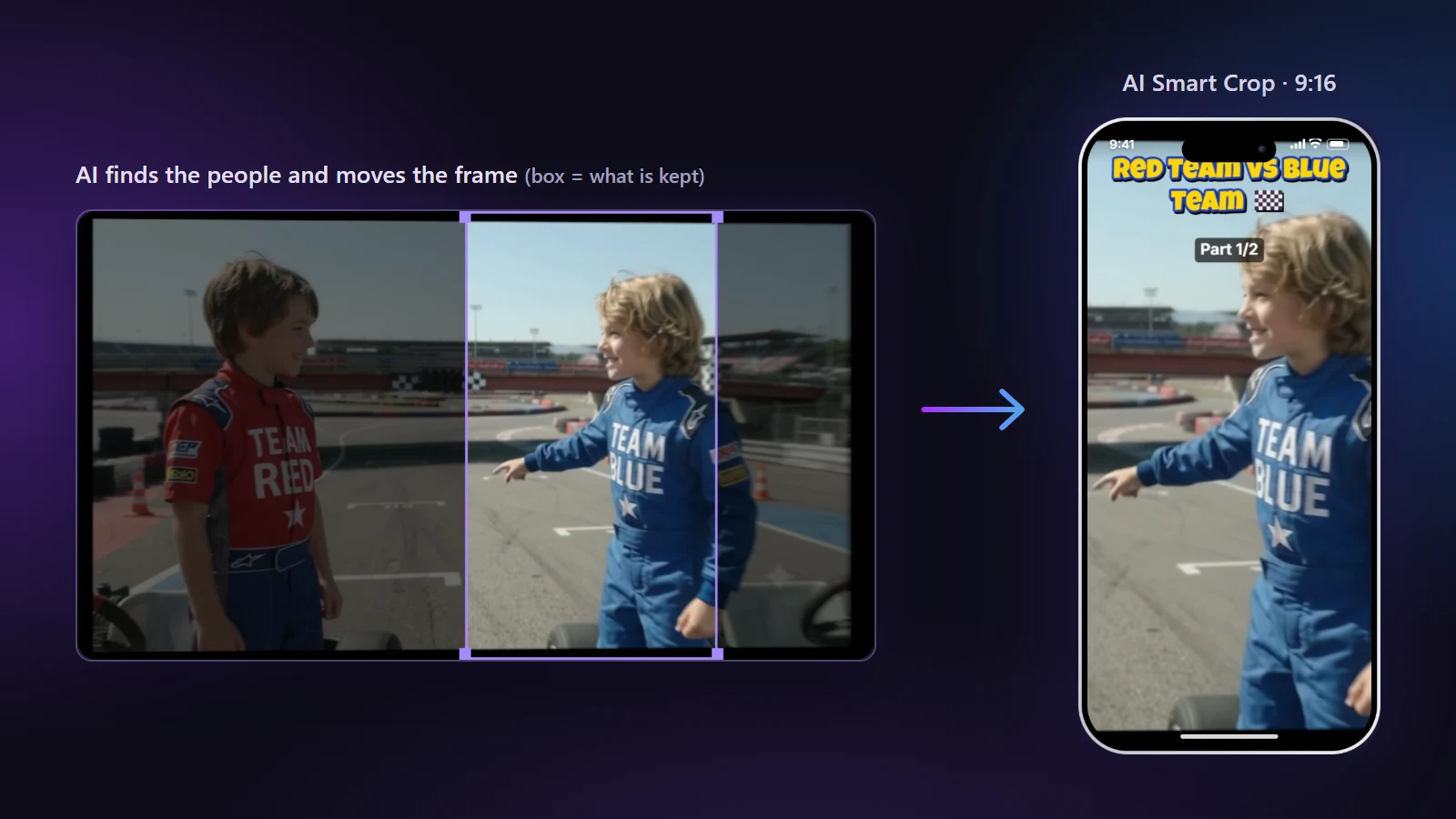
AI Smart Crop decides where the tall 9:16 frame sits inside your wide video, and moves it when the action moves. An ordinary crop is a fixed window: you choose a position once and it stays there for the whole video. That is fine for someone who never leaves their chair and wrong for almost everything else.
What the feature does
The tool scans your video on your own computer with a small person-detection model. It looks at pictures taken along the timeline, finds the people in each one, and builds a path for the crop window: stay on the person, glide when they walk, hold still when they stop. That path becomes the framing for both the preview and the exported Short. The model is downloaded to your browser and runs there, so the footage is never sent to a server.
How the frame decides what to follow
- One person: the window centres on them and moves in a smooth curve, so the picture does not shake.
- Several people: the window aims for the group when everyone fits inside a tall frame, and for the most prominent person when they do not. Two people standing far apart is exactly the case where AI Split Screen is the better choice.
- Nobody found: the window stays where it was and the tool tells you, instead of inventing a target.
Footage it suits, and footage it does not
| Kind of video | What to expect |
|---|---|
| Vlog, walking or talking to camera | Works well: one clear subject that moves around the frame. |
| Sport with one main athlete | Works well while the athlete is large enough to be detected. |
| Interview with two people close together | Works: the frame holds the pair. |
| Wide shot where people are tiny | Weaker: very small people can be missed. Try a closer clip or place the frame by hand. |
| Screen recording, slides, a game | Not for this feature. There is no person to follow, so use Blur Fill or a manual crop. |
Fixing a moment by hand
No detector is right every second. When the frame is slightly off, drag the purple box in the original video at that moment. The preview tells you the shot is framed by hand and offers Back to AI from here, so one correction does not cost you the rest of the automatic framing. The Left, Center and Right quick buttons under the picture are useful for a fast nudge, and the Position and Zoom sliders in the Framing tab refine it.
Settings worth knowing
- Zoom: a tighter frame follows the subject more closely but shows less of the scene around them.
- Trim first: the scan covers the part of the video you keep. Trim the start and end before you run it and the scan has less to look through.
- Layout changes during a video: you can use Smart Crop for one section and another layout for the next. Press Change at where you want the switch.
Mistakes we see most
- Running it on footage with no people and expecting a result. Check the preview before you export.
- Forgetting the safe zones. A well-framed person can still sit under the caption area. Turn on App buttons in the preview to see it.
- Trusting it blindly at the end of the video. Scenes where people gather or leave are where the frame most often needs a nudge.
When you are ready, open the AI auto reframe tool. For how the detection behaves in practice, read how AI auto-reframe works.