Free · No upload · No watermark

Split screen video maker for two people

When two people stand far apart in a wide shot, a normal crop can only keep one. Split Screen stacks them: one on top, one at the bottom, each zoomed in. AI Split Screen can place the two halves for you.

  • Processed in your browser
  • No account needed
  • 1080×1920 MP4 export
How it works ↓

How it works

  1. 1Open a wide video with two people

    A shot where two people stand far apart, such as a race, an interview or a game.

  2. 2Choose Split Screen

    Let AI find the two people, or place the top and bottom frames yourself. Each half zooms in on its own person.

  3. 3Export the vertical video

    Download a 1080×1920 MP4 with one person on top and the other at the bottom.

When one crop is not enough

A vertical frame is narrow. If two people are far apart in a wide shot, like two karts on a starting grid, a host and a guest, or two players, any single crop shows only one of them, or the empty space between them. A split screen solves this: the top half follows one person and the bottom half follows the other.
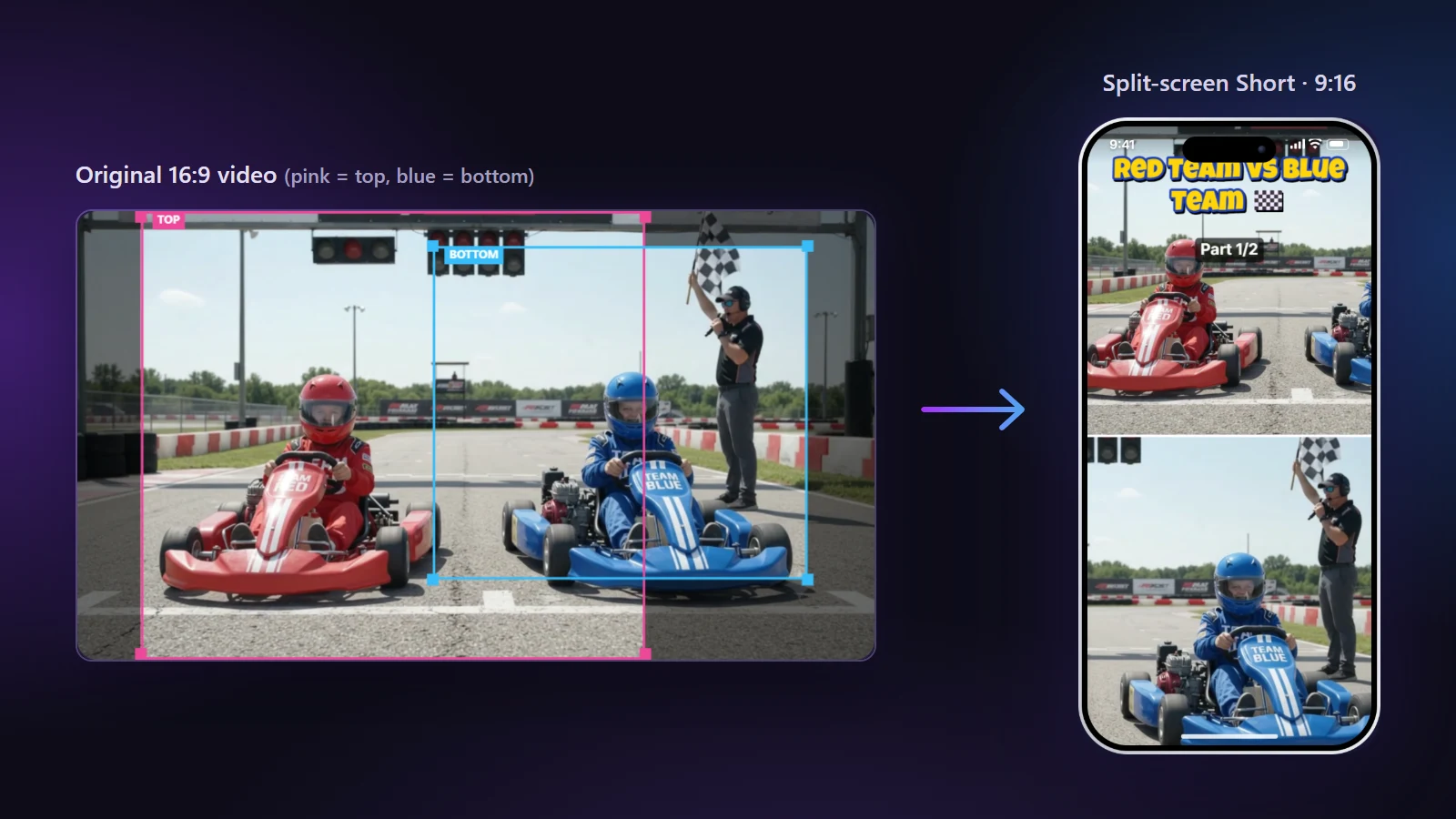
Split screen made from a wide go-kart start: red kart on top, blue kart at the bottom
From our go-kart video: the pink box becomes the top half (Team Red), the blue box the bottom half (Team Blue).

Make a split-screen video in four steps

  1. Open your video. This page starts in the Split Screen layout.
  2. Place the two boxes. Drag the pink box over the first person and the blue box over the second, or press Find the 2 people with AI.
  3. Adjust the halves. Change each half’s zoom, the size of the top half, and the divider line colour and thickness. Swap top and bottom flips them.
  4. Make the Short. Both halves are exported in one 1080×1920 video.

AI Split Screen

AI Split Screen scans the video on your computer, finds the two people who appear most, and gives each one a half. It uses clothing colours to keep the same person in the same half across the video. On our go-kart video it found both kids and kept Team Red on top and Team Blue at the bottom across cuts.
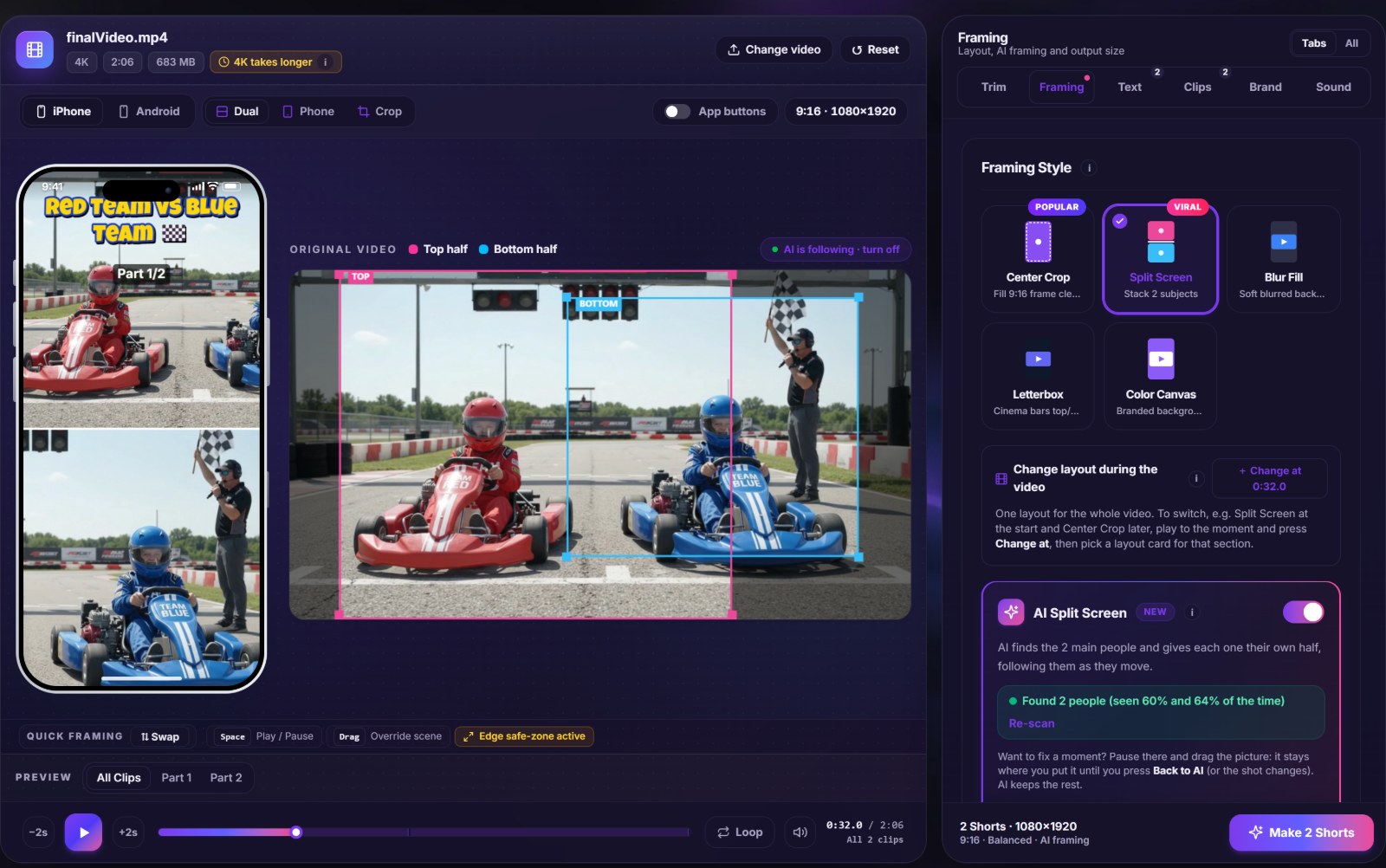
The NineSixteenAI editor with AI Split Screen switched on
The editor with AI Split Screen on: the phone preview on the left and the original video with the pink and blue boxes in the middle.

Two limits are worth knowing: if a scene shows only one person, both halves show that person; and cartoon characters are not always recognised. In those moments, drag the boxes by hand. Your change applies only to that part of the video.

Good uses for split screen

  • Races and sports: two competitors side by side.
  • Interviews and podcasts filmed with one wide camera.
  • Reactions: a person on one side, what they react to on the other.
  • Before / after in the same shot.

Frequently asked questions

How do I put two people in one vertical video?
Use the Split Screen layout. Place the pink box on the first person and the blue box on the second; they become the top and bottom halves of the vertical video.
Can AI place the split screen automatically?
Yes. Press “Find the 2 people with AI”. It scans the video on your computer, finds the two main people and follows each of them in their own half.
Can I change which person is on top?
Yes. Use “Swap top and bottom” in the Split Screen settings, or the ⇅ Swap quick pick under the original video.
Can the two halves be different sizes?
Yes. “Top half size” changes the split from 30% to 70% of the height, and each half has its own zoom.
Can I add a line between the halves?
Yes. The divider line can be turned on or off, and you can choose its colour and thickness.
What if the two people move around?
With AI Split Screen on, each half follows its person as they move. If it picks the wrong person in a scene, drag that half by hand; the fix applies only to that section.
Does the AI that finds two people send my video away?
No. The detection model is downloaded to your browser and runs on your own computer, so the people in your video are never analysed on a server.
Does Split Screen cost anything or add a mark?
It is free, with no watermark and no account. Both halves of the split are part of the normal export.