Cut a long video into clips of a fixed length, into a number of equal parts, or at exact times you choose. Every clip is exported separately, with an optional “Part 1/3” label.
Any length works. A recording, a lecture, a vlog or a livestream, with 4K included.
2Choose how to cut it
Every 15, 30 or 60 seconds, a set number of equal parts, or your own start and end times.
3Download every clip
Each clip is its own MP4, with optional Part 1/3 labels. Save them one by one or as a ZIP.
Three ways to split a video
Splitting sounds simple until you try to do it precisely. This page opens the editor in the Clips tab with three ways to cut:
Every… cuts at a fixed length: 15 s, 30 s, 1 min, 1.5 min, 2 min, 3 min or any number of seconds you type.
Equal parts divides the video into 2 to 20 parts of the same length. Useful when a story should be told in exactly three episodes.
My times lets you type exact ranges, one per line, such as 0:40 - 1:40. Gaps are skipped, so you can leave out boring bits.
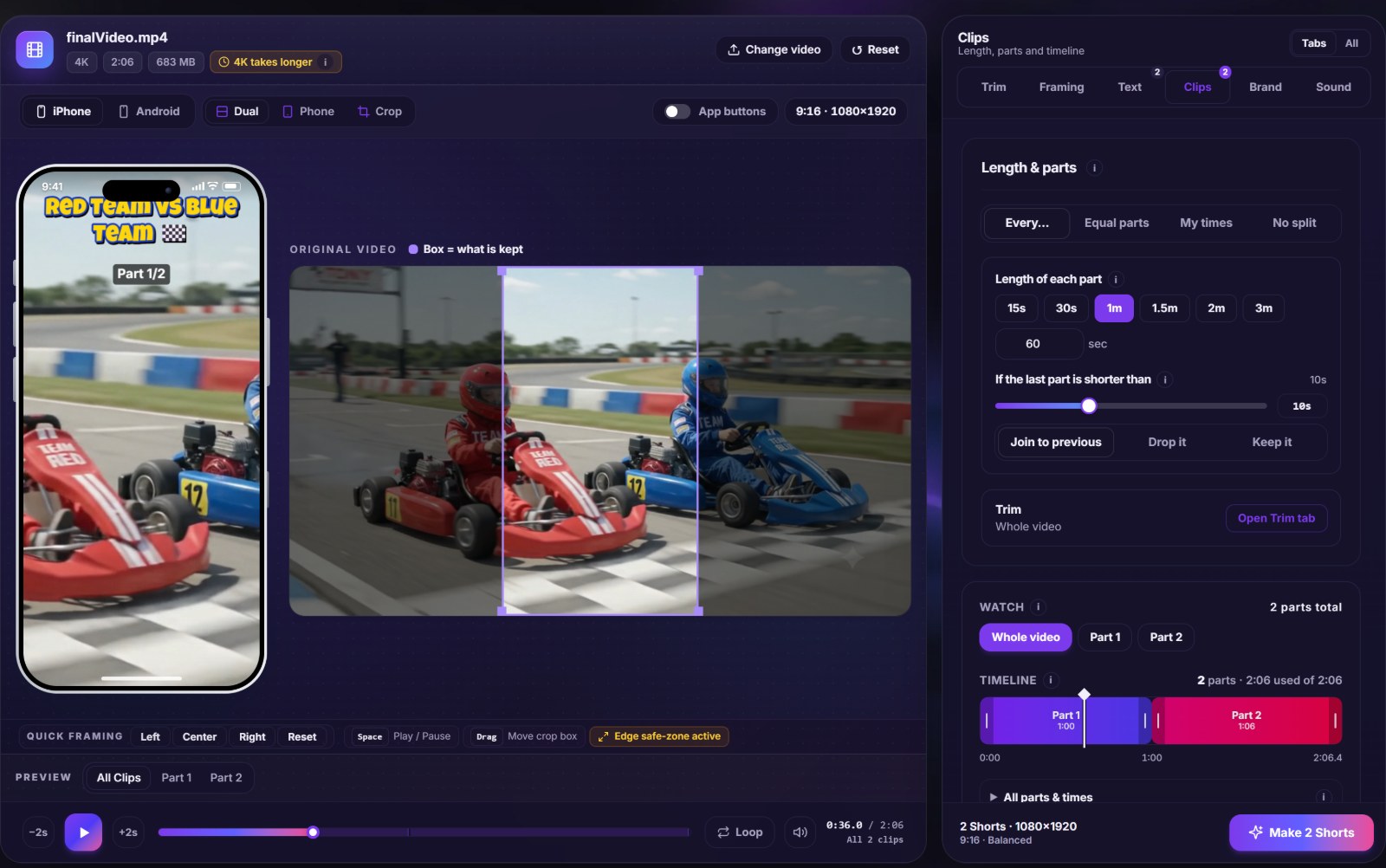
The Clips tab with “Every 1 minute” selected. The timeline shows each part with its real start and end time.
What happens to the last few seconds?
A 2:06 video cut every minute leaves a 6-second tail. Six seconds rarely makes a good Short, so you decide: join it to the previous part (that part becomes 1:06), drop it, or keep it as its own clip. The threshold is adjustable; by default anything under 10 seconds is joined.
Cutting on the right frame
Fixed lengths are a starting point. Select a part, play to the exact moment, and press Set start at or Set end at. The button turns green to confirm, and clicking it again undoes the change. The ±0.1 s and ±1 s buttons nudge a cut without replaying.
Example: we cut our go-kart test video at 1:00 exactly, then moved Part 2’s start to the moment the karts enter the tunnel, a much stronger first second than the end of a corner.
Trim the start and the end
“Start from” and “End at” remove an intro or outro before the video is split, so your parts don’t begin with a logo animation or end on a subscribe card meant for the long video.
Exporting the clips
Every part is exported as its own vertical MP4 named yourvideo_part01.mp4, part02 and so on. Download them one by one or all together as a ZIP. If you’d rather keep the original wide shape, pick Letterbox or Blur Fill, which show the full picture.
Frequently asked questions
How do I split a video into 1-minute clips?
Open the Clips tab, choose “Every…” and click 1m (or type 60). Every minute of the video becomes one clip, and the last short piece can be joined, dropped or kept.
Can I split a video at exact times?
Yes. Choose “My times” and type one range per line, for example 0:05 - 0:58 and 1:10 - 2:00. You can also select a part and use “Set start at” and “Set end at” while watching.
Is there a limit on video length or file size?
No fixed limit. The file is read from your disk, not uploaded, so long and large videos work. Very long 4K videos take longer to process on slower computers.
Do the clips keep the original sound?
Yes, unless you turn it off or replace it with music in the Sound tab. Each clip can also fade in and out.
Can I keep the video horizontal?
The tool is made for vertical output, but Letterbox and Blur Fill show the entire wide picture inside the tall frame. A 1:1 square is also available.
How are the files named?
Each clip is named after your video with a part number, like goKart_part01.mp4. You can download all of them at once as a ZIP file.
Are my clips stored on a server when I split a video?
No. The video is cut into parts inside your browser and each clip is written straight to your downloads. We never receive the video or the parts.
Is there a limit on how many clips I can cut?
We set none. Cutting and exporting clips is free with no watermark. The real limit is your computer’s memory for very long videos.