Free · No upload · No watermark

Add music and a voiceover to your Shorts

Mix a song under the original sound or replace it, pick the exact start of the song, record your own voiceover, and let the music dip automatically when people talk.

  • Processed in your browser
  • No account needed
  • 1080×1920 MP4 export
How it works ↓

How it works

  1. 1Open your video

    Choose the video that needs new sound. The original audio can stay or be replaced.

  2. 2Add music or record a voiceover

    Pick a song and where it starts, or record your voice with the microphone. Let the music dip while people talk.

  3. 3Mix and download

    Set the volumes, fade the picture in and out if you like, and export the finished MP4 with the new sound.

Everything about sound in one tab

This page opens the editor on the Sound tab. It has four parts: the original sound, music, a voiceover, and the mix (fades and automatic music lowering). Everything is mixed on your computer, both in the preview and in the exported file.
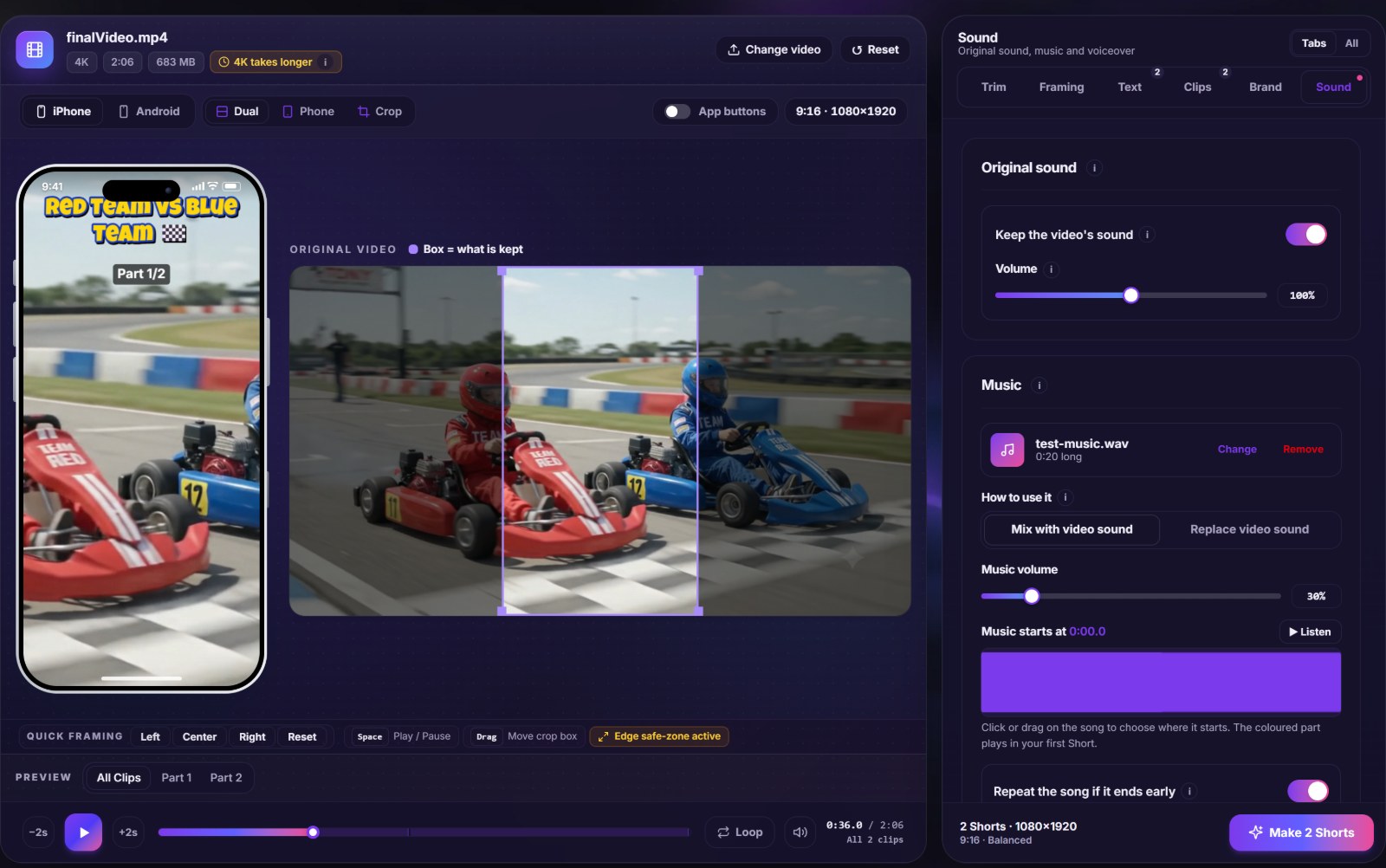
The Sound tab with original sound, music upload and voiceover recording
The Sound tab: keep or remove the original sound, add music, and record a voiceover.

Add music to your video

  1. Click Add music and choose an MP3, M4A, WAV or AAC file. It stays on your computer.
  2. Mix or replace. Mix plays the song under the video’s own sound (good when people talk); Replace plays only the music.
  3. Pick where the song starts. Click or drag on the waveform to skip a slow intro. The coloured part is what plays in your first Short; press ▶ Listen to check.
  4. Set the volume. Around 20–35% under speech is a good starting point.
  5. Several Shorts? Choose whether each one starts the song from the same point or the song continues from Part 1 into Part 2.

If the song is shorter than the Short, it repeats from the beginning (you can switch that off).

Record a voiceover

Pause the video where your voice should start and press Record voiceover. After a 3-2-1 countdown the video plays and the microphone records; press Stop or pause to finish. The voice is placed exactly where you recorded it, and you can replay, re-record or delete it. Use headphones if you want to hear the video while recording, otherwise the microphone picks up the speakers. See our voiceover guide for simple ways to sound clearer.

Lower the music when people talk

Turn on Lower the music when people talk and choose how much. The music dips while the video’s sound or your voiceover is loud, then comes back. It works on loudness, so loud engine noise or crowd sound also lowers the music a little.

Use music you are allowed to use

Copyrighted songs can get your Short muted, blocked or monetised by someone else. Free libraries such as the YouTube Audio Library, or music you made yourself, avoid this. Our guide on music for Shorts without copyright problems explains the options.

Frequently asked questions

How do I add music to a video without uploading it?
Open the video, go to the Sound tab and click “Add music”. Both files are read from your computer, mixed in your browser and exported as one MP4.
Can I remove the original sound?
Yes. Switch off “Keep the video’s sound”, or choose “Replace video sound” when you add music.
Can I choose which part of the song plays?
Yes. Click or drag on the song’s waveform to choose the starting point. The highlighted part shows what plays in your first Short.
Can I record my own voice?
Yes. “Record voiceover” uses your microphone while the video plays. The browser will ask for permission the first time.
What does “Lower the music when people talk” do?
It automatically reduces the music volume while the video sound or your voiceover is loud, so voices stay clear, then raises it again.
Which music files are supported?
MP3, M4A, WAV and AAC work in all modern browsers; OGG works in most.
Can I use any song from the internet?
Only if you have permission. Songs you don’t have rights to can be detected by Content ID and lead to muted or claimed videos.
Are my music and voiceover files uploaded?
No. The song you choose and the voiceover you record with your microphone stay in your browser. They are mixed into the video on your computer and nothing is sent to us.