
Vertical video for Facebook
Facebook shows Reels full-screen in the Reels tab and in a tall frame in the main feed. Landscape videos still work on Facebook, but as Reels they appear small and are easy to scroll past. Converting a landscape video into a 9:16 Reel gives it the whole screen. This converter opens with Center Crop at 9:16 so you can choose what to keep.
Design for sound off
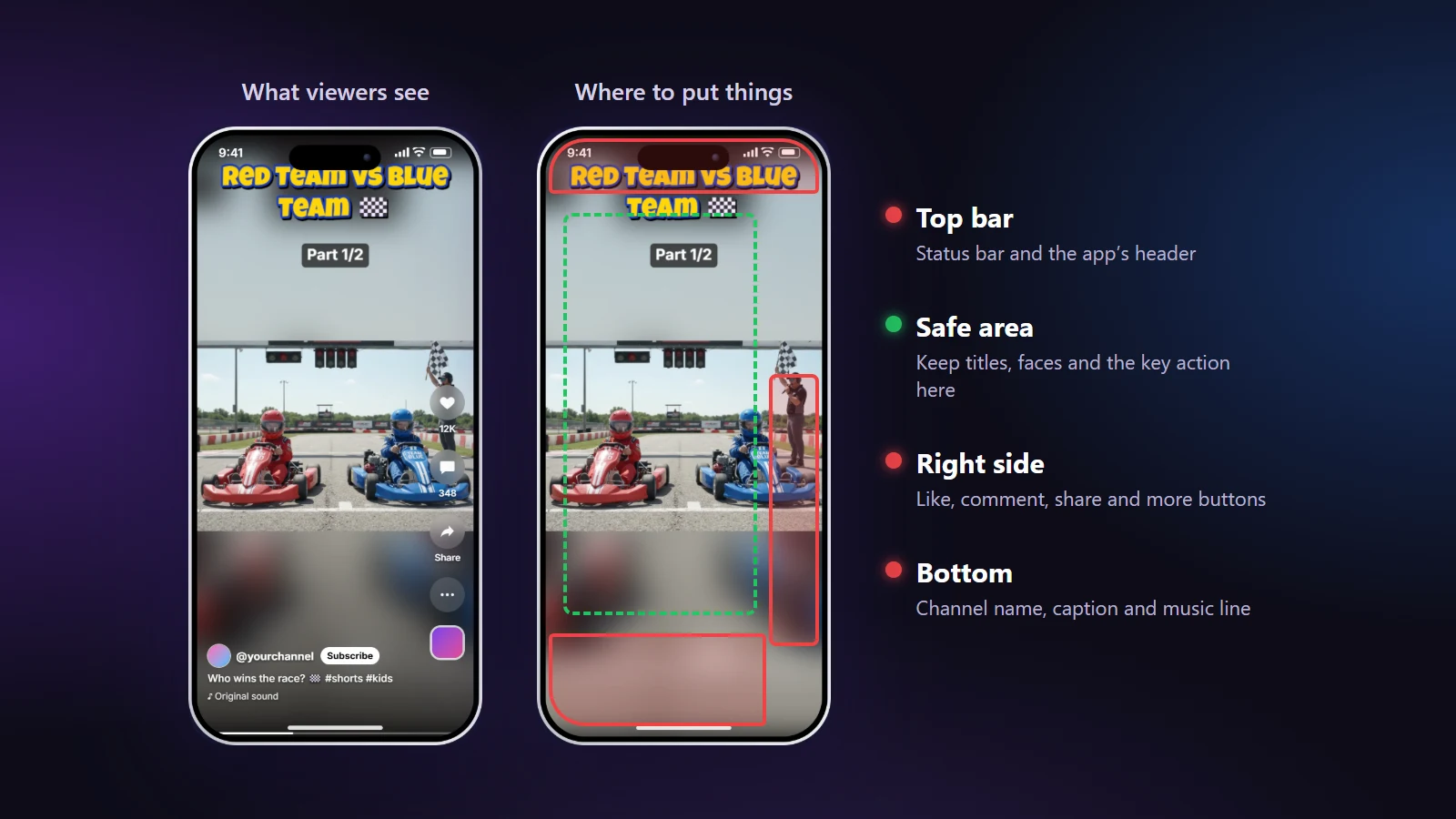
A lot of people browse Facebook with the sound muted, so a Reel should make sense without audio. Add a clear title at the top and short captions for the key moments in the Text tab. Large, bold text with an outline or a background box stays readable on any picture; the Subtitle and YouTube Bold quick styles are good starting points.
How to make a Facebook Reel from a landscape video
- Open the video by dropping it on the page. It stays on your computer.
- Choose the layout and frame it. Drag the box over the important part, or use AI Smart Crop to follow the people.
- Add text for sound-off viewers: a title, and short captions where something important is said.
- Add music or a voiceover in the Sound tab if you like, and turn on “Lower the music when people talk”.
- Export the 1080×1920 MP4 and upload it as a Reel from the Facebook app or Meta Business Suite.
Reels or a 4:5 feed video?
If you want the video to sit in the main feed rather than in Reels, 4:5 (1080×1350) takes up more space than a landscape video while leaving room for the post text. Switch the shape under Framing → Output. For Reels, keep 9:16.
One export for Facebook and Instagram
Facebook and Instagram Reels use the same 9:16 format, and Meta lets you share a Reel to both. Keep the main action near the centre, because Facebook may show a cropped preview of the Reel in the feed and on your page.