
This is the video we test everything on, and the one most screenshots on this site come from: a two-minute race between two kids, one in a red "Team Red" suit and one in blue. It's a good test because it's awkward. The two drivers are often on opposite sides of a wide frame, which is exactly where a normal vertical crop falls apart.
It's my own video. I made it for my YouTube channel, Red Blue Kids TV. You can watch the full race on YouTube and the Short I made from it with NineSixteenAI.
Here's how it went from a 4K file to vertical Shorts, including the parts that needed a human.
What we started with
| Video | Details |
|---|---|
| Length | 2 minutes 6 seconds |
| Resolution | 3840×2160 (4K), 16:9 |
| File size | 683 MB |
| What's in it | The two kids chatting at the track, a start line, laps, a tunnel, the finish and a short outro |
The file opened straight away in the editor. Nothing is uploaded, so the size didn't matter.
Step 1: the simple crop, and why it didn't work
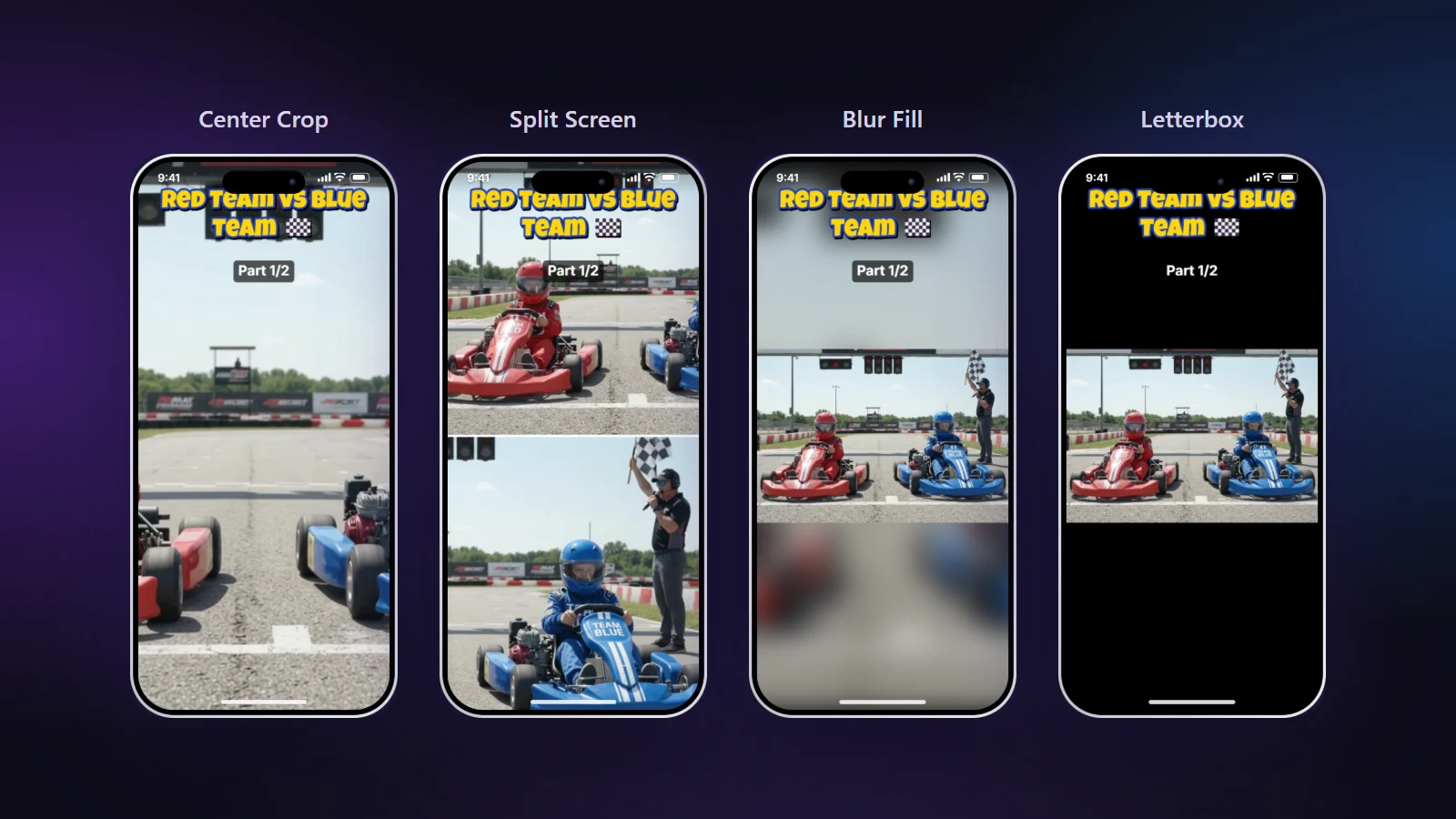
We tried Center Crop first, because it's the default and it's what most people would expect. At the start line it landed exactly between the two karts: a strip of empty track with half a wheel on each side. Blur Fill and Letterbox kept both karts, but small. For a race between two people, the story is both people, so Split Screen was the obvious pick.
Step 2: let the AI place the two halves
We pressed Find the 2 people with AI. On our laptop the scan of the whole 4K video took about a minute. It reported two people, one seen in about 56% of the video and the other in about 66%. That sounds low until you remember the rest of the clip is close-ups of one driver, the tunnel and the outro.
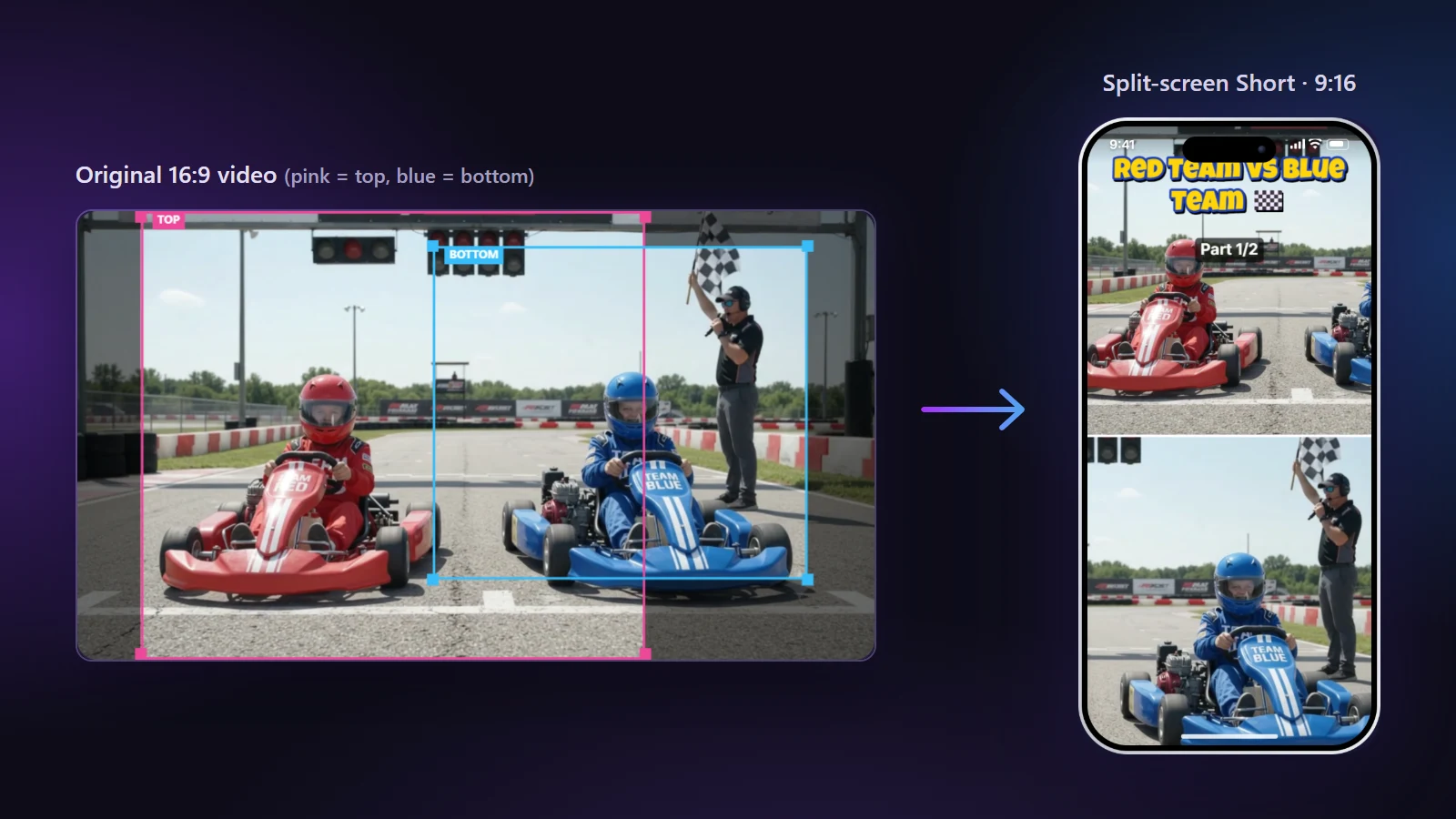
It put Team Red on top, Team Blue at the bottom, and followed each kart as it moved. Two moments needed us. In one close-up only one kid is in shot, so both halves showed him. We left that, because it's short and reads fine. At the very end the two kids stand together, and the halves came out the wrong way round compared with the rest of the video, so we used Swap to keep the same kid on top throughout.
Step 3: cutting it into parts
Two minutes and six seconds is two Shorts of about a minute. We chose Every 1 minute. That leaves six seconds at the end, which on its own would be a pointless third Short, so the leftover rule joined it to the second part. Part 2 ended up 1:06 long.
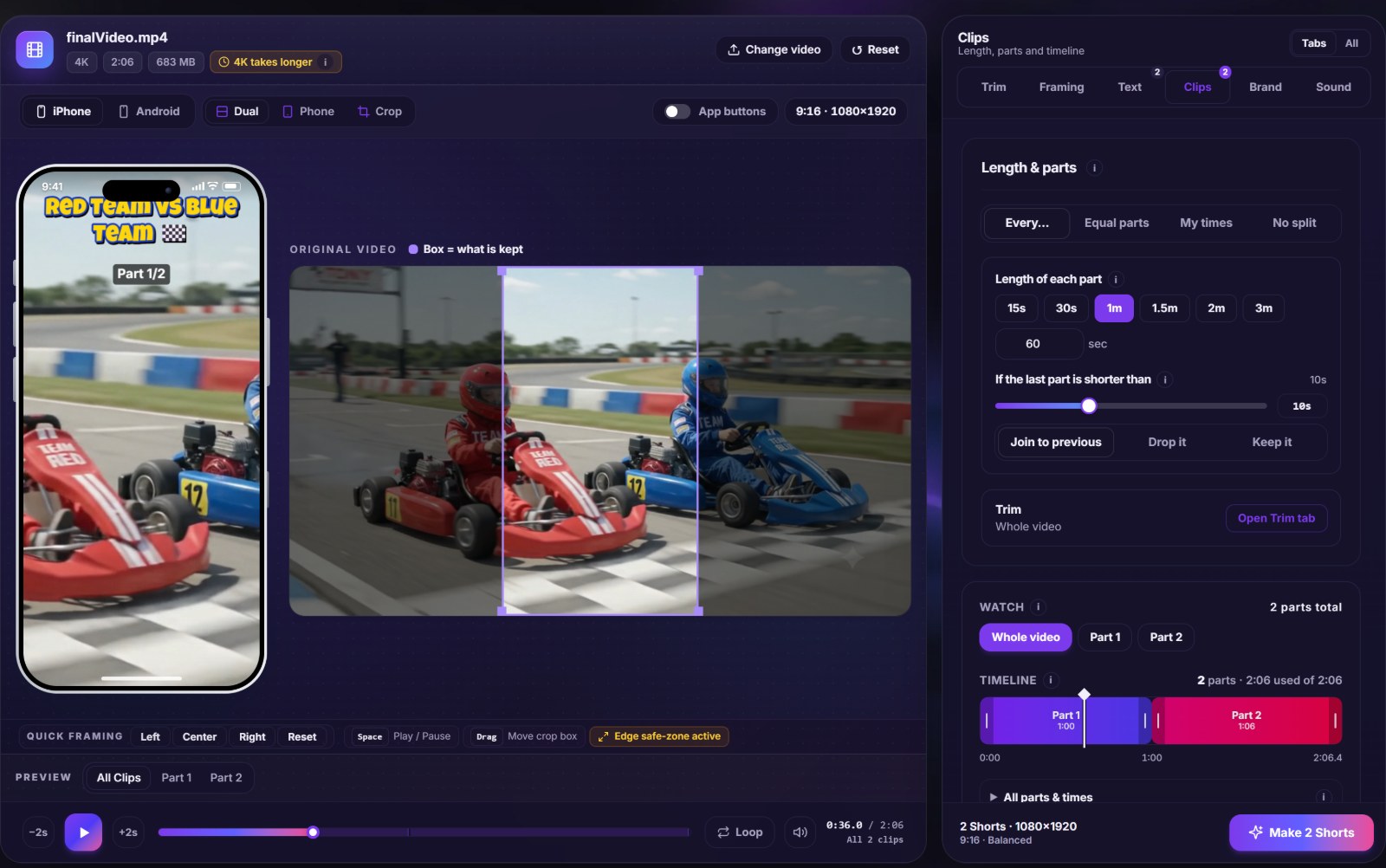
Then we looked at where Part 2 actually starts. At exactly 1:00 it opened on the end of a corner, which is a weak first second. Moving the cut a few seconds so Part 2 opens on the karts entering the tunnel made it a much better start.
Step 4: title, part label and the covered areas
We added "Red Team vs Blue Team 🏁" in the Kids Bubble style and a "Part 1/2" label underneath. With App buttons switched on, it was obvious the title was a little too high: the top line sat under the app's header. A small nudge down fixed it. Our safe-zones guide shows the areas to watch.
Step 5: export
We exported at 1080×1920 with the Balanced profile. Making Shorts from a 4K source is the slow case: a one-minute part took roughly two minutes on our laptop. The same clip in 1080p would be much quicker. Each part came out as its own MP4, 60 and 66 seconds long.
What we'd tell someone doing the same
- Pick the layout for the story, not for the camera. If the clip is about two people, both people need to be on screen.
- Let the AI do the boring part, then check the scene changes. Fixing two moments by hand is a lot quicker than framing two minutes yourself.
- Move the cut to the action. A few seconds made the difference between a dull start and a good one.
- Don't export 4K. 1080×1920 looks the same on a phone and finishes much sooner.
- Turn on App buttons before you export, not after you've posted.
If your video has one person instead of two, AI Smart Crop works the same way: it finds the person and moves the frame with them.