
Resizing a video for social media means choosing a shape (the aspect ratio) and a size (the resolution). The shape decides how the video fits the screen. The size decides how sharp it looks. Here are the values to use in 2026 and how they compare.
The shapes that matter
| Shape | Size | Where it is used |
|---|---|---|
| 9:16 vertical | 1080 × 1920 | YouTube Shorts, Instagram Reels, TikTok, Facebook Reels |
| 4:5 portrait | 1080 × 1350 | Feed posts that take more room than a square |
| 1:1 square | 1080 × 1080 | Feed posts, older layouts and previews |
| 16:9 wide | 1920 × 1080 | Standard YouTube videos, desktop viewing |
Resolution: how much do you need?
- 1080 × 1920 is the standard for vertical video. It looks sharp on phones.
- 720 × 1280 is smaller and acceptable when file size matters more than detail.
- 540 × 960 is a draft size: fast to export, softer to watch.
Going above 1080 × 1920 rarely helps, because the apps compress what you upload and phone screens do not show the extra detail.
Resize does not mean stretch
A resizer that only squeezes the picture into a new shape distorts it. A proper resize chooses what to show: a crop, a fit with a background, or a split. Our 16:9 to 9:16 guide explains the three.
File settings
- Format: MP4 with H.264 video is the safest choice and plays everywhere.
- Sound: keep it, even if the video is silent; some apps handle a missing sound track poorly.
- Length: each app has its own limit and changes it over time. Check the app's help before you plan a long clip.
Resize in four steps
- Open the video in the editor. It reads the source size.
- Choose the shape in Output Specs: 9:16, 4:5 or 1:1.
- Choose the resolution: 1080p, 720p or 540p.
- Pick a Render Profile: Fast for a draft, Balanced for most videos, Best when quality matters most. Export.
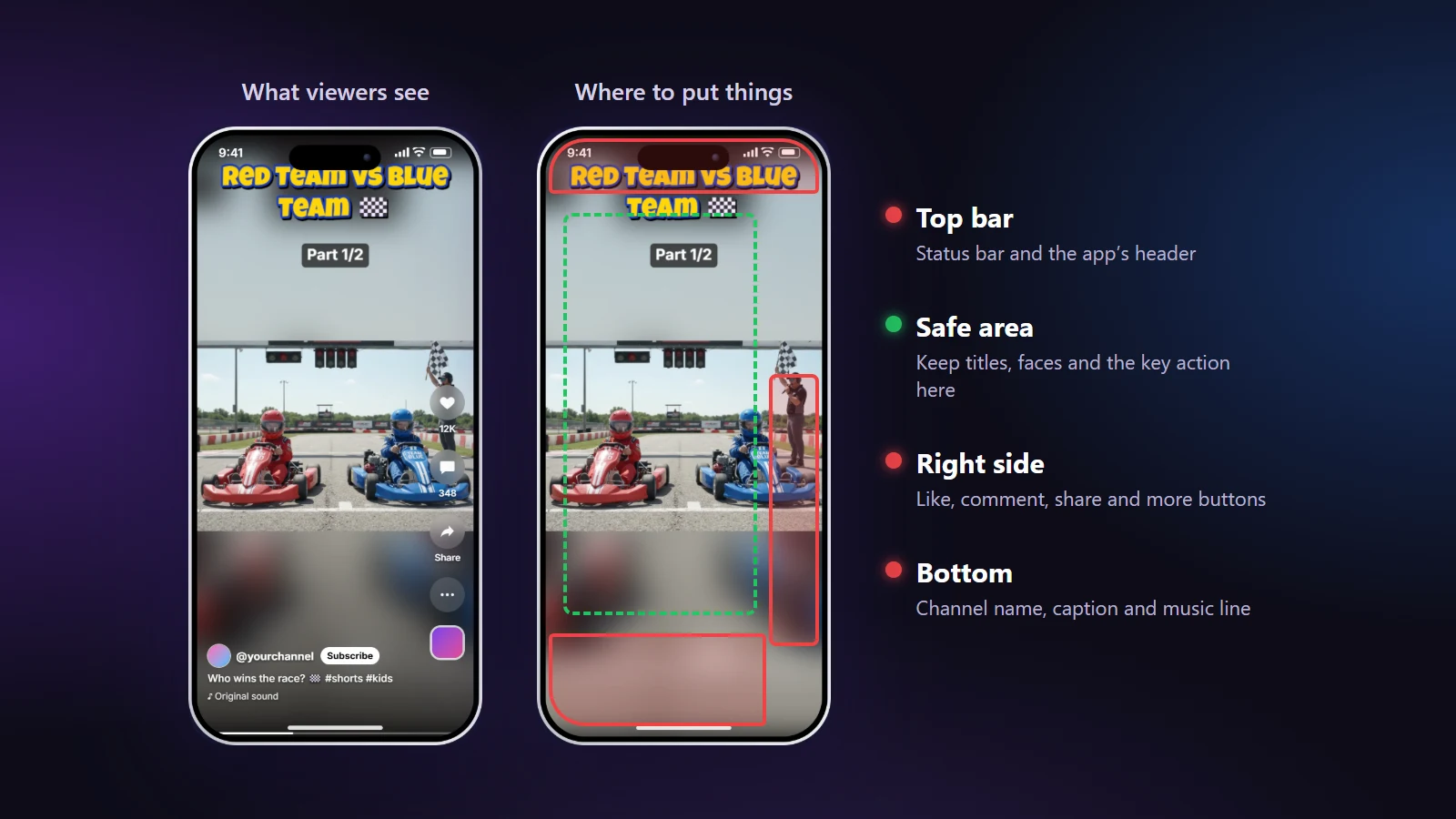
Safe areas apply to every size
The size you choose does not change where the interface sits. Keep titles and faces inside the clear middle and check the preview with App buttons on. See safe zones for Shorts and Reels.
Mistakes to avoid
- Uploading 16:9 video to a vertical app and letting it add bars.
- Exporting at a draft size and posting it.
- Choosing 4:5 for a Reel; Reels are 9:16.
Resize a video now with the Shorts maker or the horizontal to vertical converter.