
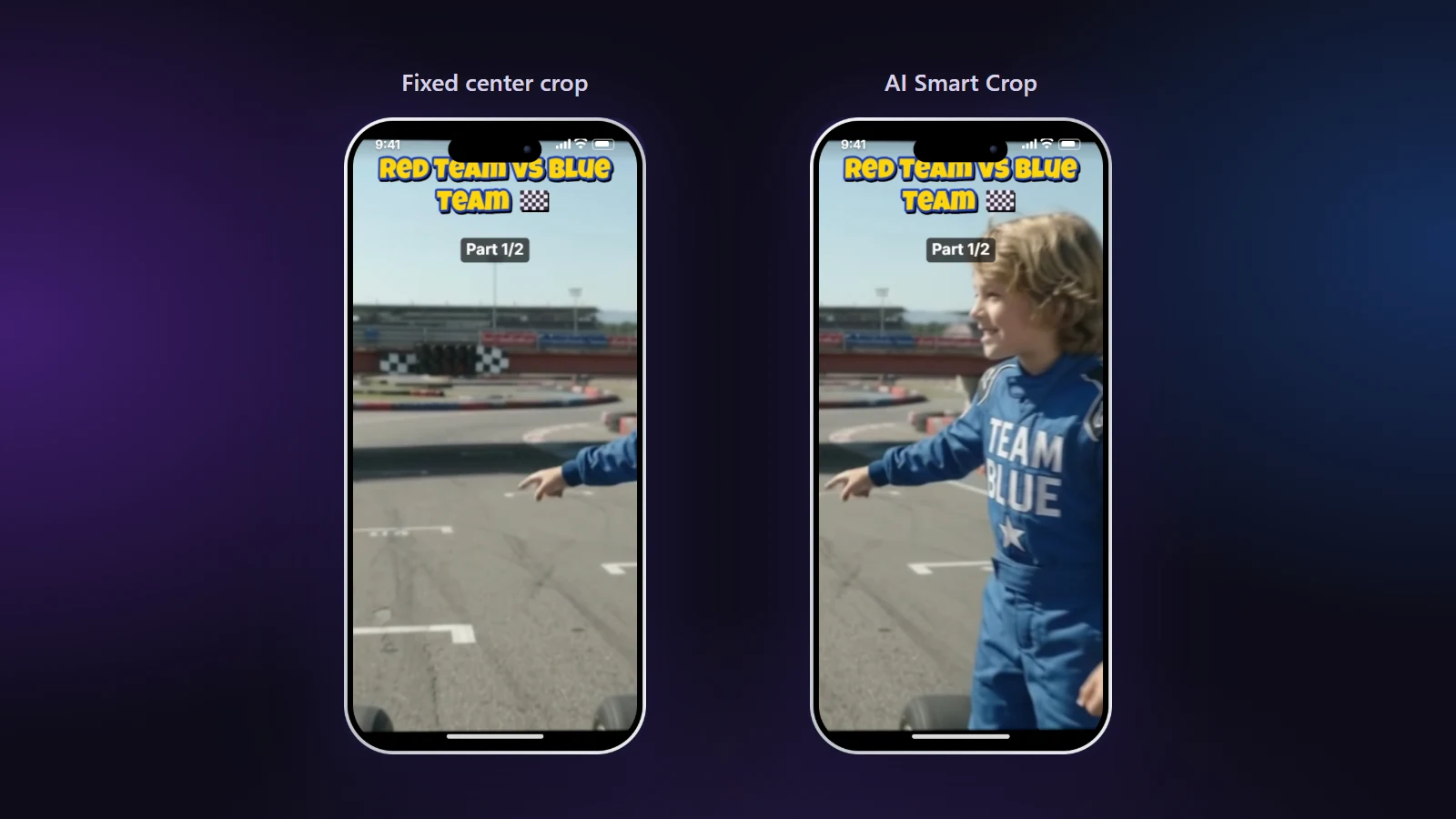
“AI reframe” is often marketing for “we crop the middle.” Here is exactly what NineSixteenAI’s AI Smart Crop does, what it can’t do, and how to correct it.
Step 1: look through the video
When you press Follow the action with AI, the site downloads a small open-source object-detection model (Google MediaPipe, EfficientDet) once and runs it in your browser. It looks at the video about three times per second. For each look it records where people are, and also cars, karts, bikes, animals and balls in case no person is visible. Nothing leaves your computer.
In the same pass it compares each frame with the previous one to find shot changes, places where the original video cuts to a different camera, and then pins each cut down to within a frame.
Step 2: choose what to follow
A frame often contains several people. The AI prefers the most prominent subject (large and clearly detected) but avoids jumping between subjects: switching costs a “penalty” in its planning, so it only switches when the other subject is clearly more important. When two subjects fit in the frame together, it frames both.
Step 3: move like a camera operator
- Hold still when the subject stays in a small area during a shot. Constant tiny movements look nervous.
- Pan smoothly when the subject moves a lot, using a gentle smoothing so the frame never jerks.
- Cut with the original video. At a shot change the frame jumps instead of sliding across the new shot.
What it can’t do
- Animation: the model is trained on real-world footage, so cartoon characters are often missed.
- Tiny subjects: people far away in a wide drone shot may not be found.
- Intent: it doesn’t know which person is the star of your story. If it follows the wrong one, correct it.
Correcting a moment
Pause where the framing is wrong and drag the picture. From that moment the frame stays where you put it until you press Back to AI here (or the shot changes). The frame then glides back to the AI path over about a third of a second. Each hand-framed section shows as an orange band on the playback bar and can be removed individually.
Speed
On our laptop a 2-minute 4K video took about a minute to scan with the tab in view. If you switch to another tab, the scan continues in a slower step-by-step mode; the tab title shows its progress.