
It's a common question, usually right after someone buys a camera that films in 4K: should the Shorts be 4K too? Short answer, no. Longer answer: 4K is still worth filming in, just not for the reason most people think. It pays off when you crop, not when you export.
Where 4K actually helps
When you turn a 16:9 video into a 9:16 one, you keep a tall slice of the picture that is only about a third as wide as the original. That slice is where the pixels run out.
| What you filmed | Width of the tall slice | What happens at 1080×1920 |
|---|---|---|
| 4K (3840×2160) | about 1215 px | Scaled down. Sharp, with room to zoom |
| 1080p (1920×1080) | about 608 px | Blown up about 1.8 times. A bit soft |
| 720p (1280×720) | about 405 px | Blown up about 2.7 times. Clearly soft |
So with a 4K source, the crop still has more detail than the Short needs. With a 1080p source, the same crop has to be stretched to fill the screen. On a phone that shows up as slightly mushy faces and fuzzy text on signs, not as something dramatic, but you notice it next to a clip that was filmed in 4K.
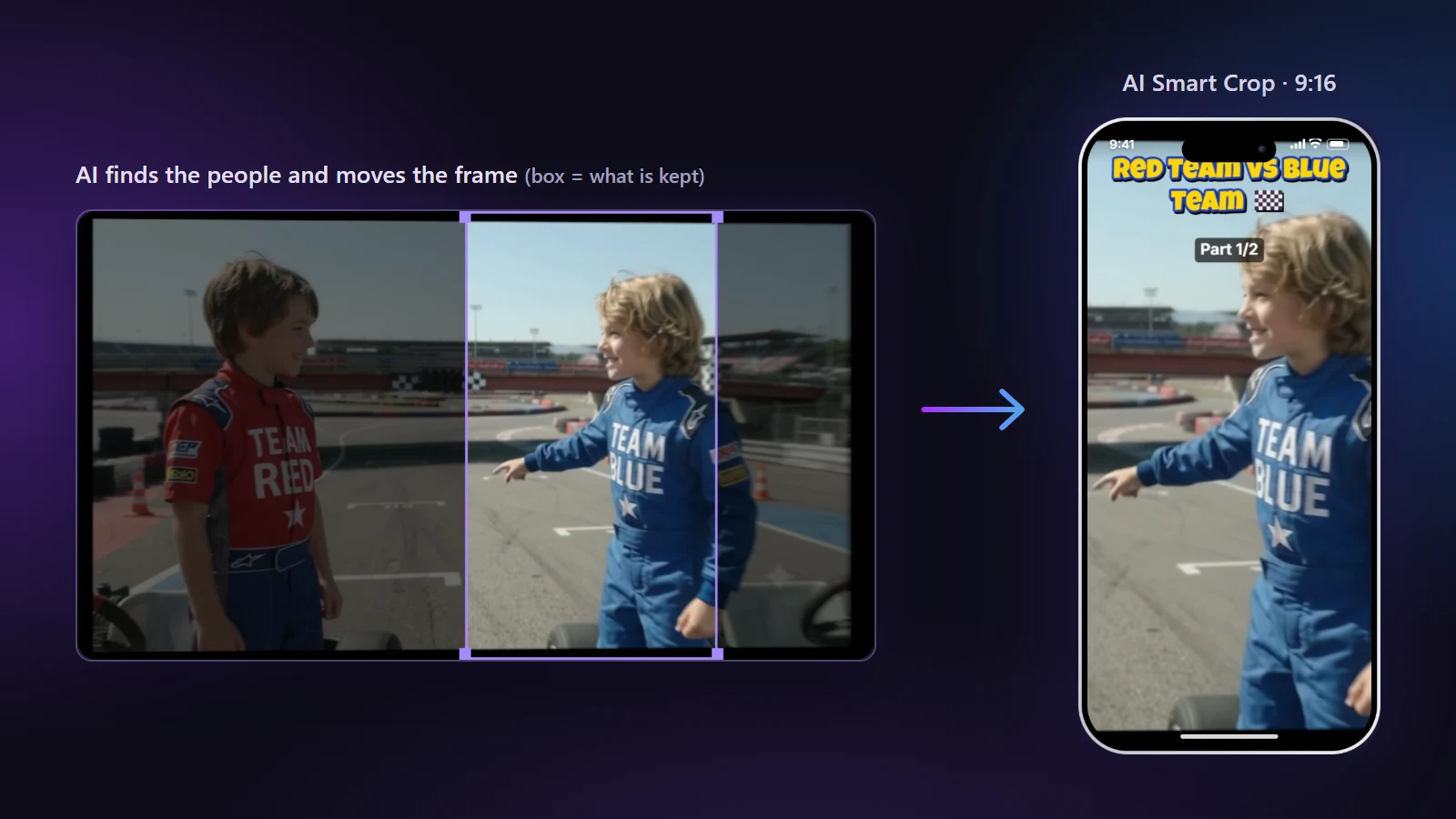
Zooming makes the difference bigger. If you zoom in to make a face fill more of the screen, a 4K source can take it. A 1080p source starts to fall apart fairly quickly.
Where 4K doesn't help: the file you upload
Exporting the Short itself in 4K (2160×3840) is a different story. It's four times the pixels of 1080×1920, it takes a lot longer to make, and the upload is bigger. None of that shows up on screen. The phone shows the video at a few centimetres wide, and every app re-compresses what you upload anyway.
That's why NineSixteenAI exports 1080×1920 by default. You can choose 720p or 540p when you want a smaller file or a quick draft, but there's no 4K export, because we couldn't find a case where it was worth the wait.
What it costs in time
Decoding 4K is the heavy part of the job. On a typical laptop, our experience is that making Shorts from 4K footage takes roughly twice the length of the video. A one-minute part takes around two minutes. From 1080p footage it's a lot quicker.
The AI features read the video too. When we ran AI Smart Crop on our 2-minute 4K go-kart video, the scan took about a minute before the frame started following the boy in blue. That's a one-off cost per video; changing the layout afterwards doesn't scan again.
Chrome and Edge are the fastest browsers for this, because the video engine can use several processor cores there. Firefox and Safari work, just slower.
The 1080p source: how to get the best out of it
Plenty of good video is filmed in 1080p, and it's perfectly usable for Shorts. A few habits help:
- Don't zoom much. Keep the crop near 100% zoom. Every step in costs sharpness.
- Prefer layouts that keep more of the picture. Split Screen gives each person half the height, so less enlargement is needed. Blur Fill shows the whole frame and doesn't enlarge at all.
- Use the Best render profile if the clip has fine detail like grass or crowds. It's slower but holds texture better.
- Film closer next time. If you know a clip will become a Short, frame the subject a bit tighter when you record. You'll need less crop later.
What we'd do
- If your camera or phone can film in 4K, film in 4K. Storage is cheap and the freedom to crop is worth it.
- Export your Shorts at 1080×1920. It's sharp on every phone and keeps the files small.
- With a 1080p source, avoid tight crops and lean on Split Screen or Blur Fill.
- Keep the original frame rate. Changing 25 fps to 30 fps adds duplicated frames that look jerky on fast pans.
If you want the maths behind the crop, our 16:9 to 9:16 guide walks through it step by step. For the full list of upload settings, see YouTube Shorts size and specs.