
Most online video tools work the same way. You upload your file, a server somewhere processes it, and you download the result. That's convenient, but it means your video sits on someone else's computer for a while, and for a 4K file the upload is often the slowest part of the whole job.
NineSixteenAI does it differently. The editing happens inside your browser tab, on your own computer. Here's what that means in plain terms, and how you can check it yourself instead of taking our word for it.
What happens when you open a video here
- Your browser reads the file from your disk. The page gets a local handle to it, the same way a desktop app would. No copy goes to the internet.
- The preview uses the browser's own video player. That's why scrubbing and playback feel instant even for big files.
- The video engine runs in the tab. When you press Make my Short, a version of ffmpeg that's built to run in the browser reads your file in pieces and writes the new MP4 into the tab's memory.
- The AI model runs in the tab too. It's downloaded once from this site and then looks at frames on your machine. The frames aren't sent anywhere.
- Your settings stay in your browser. Layout, text style, logo and sound choices are saved in the browser's local storage.
What that means for you
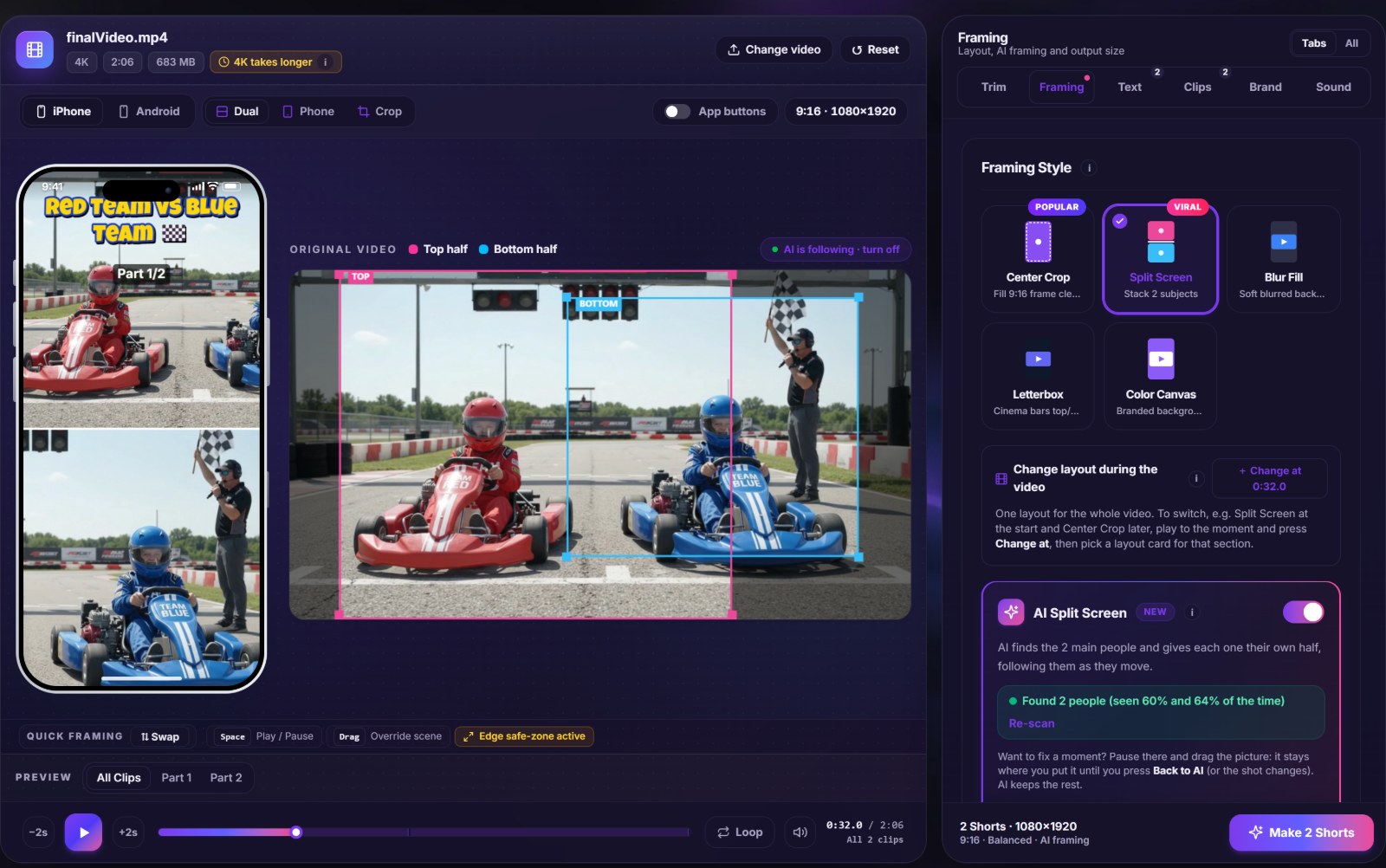
No upload wait. Our 4K go-kart test file is 683 MB. It opens in the editor in a second or two, because nothing is uploaded. We've opened a 1.3 GB file the same way.
No size limit set by a server. The only limits are your computer's speed and memory.
Privacy by default. Family videos, footage for a client, a video you haven't published yet: it never leaves your machine, so there's nothing for anyone else to store, analyse or lose.
Works on a weak connection. Once the page, the video engine and the AI model have loaded, a slow connection doesn't slow the editing down.
The honest trade-offs
Doing the work on your computer has costs too, and it's better to know them up front.
- Speed depends on your machine. A recent laptop handles 1080p comfortably. 4K works, but it takes roughly twice the length of the video to export.
- The tab has to stay open while Shorts are being made. You can switch to another tab; closing it stops the job.
- Phones can do it, with limits. They have less memory and slower processors, so long or 4K videos are much easier on a computer.
- The first visit downloads the engine. It's a one-time download of a few megabytes, cached for next time.
Check it yourself in two minutes
You don't have to trust any tool's privacy claims, ours included. Browsers let you watch every request a page makes.
- Open the browser's developer tools (F12 on Windows, Cmd+Option+I on a Mac) and choose the Network tab.
- Open a video in the tool and start making a Short.
- Look at the size column for requests that send many megabytes. A tool that uploads your video will show one roughly the size of your file. A local tool won't.
On NineSixteenAI you'll see the page itself, the video engine and the AI model being downloaded, and ads on the content pages. You won't see your video going out.
Who this matters most for
- Parents making clips of their kids.
- Editors working with a client's unreleased footage.
- Anyone with a slow or metered connection, for whom uploading gigabytes is the expensive part.
If you're curious how the files are made without a server, our 4K or 1080p guide covers what it costs in time, and the privacy policy lists exactly what the site does and doesn't store.