
A voiceover is the cheapest way to make a clip feel finished. The picture shows what happened; your voice tells people why they should care. You don't need a studio or a fancy microphone. Most of what makes a voiceover sound good happens before you press record.
1. Pick the right room
Echo is the biggest giveaway of a home recording. Hard, empty rooms bounce your voice around: kitchens, bathrooms, a bare office. Soft things soak it up.
Record somewhere with a sofa, curtains, a bed or a wardrobe full of clothes. A phone's built-in microphone in a quiet bedroom honestly sounds better than a good microphone in an echoey kitchen. If you can, switch off fans and close the window.
2. Get the distance right
- Keep the microphone about a hand's width from your mouth, roughly 15 to 20 cm.
- Angle it slightly to the side so hard sounds like "p" and "b" don't pop.
- Talk at a normal, energetic level, as if you're telling a friend across the table about it. Whispering sounds weak; shouting distorts.
- Record five seconds, listen back with headphones, adjust. It saves redoing the whole take.
3. Write the first sentence
You don't need a full script. You do need the first line, because that's when people decide to stay or swipe. Write it down and say it the same way a couple of times until it sounds natural.
For our go-kart clip, a good first line would be: "Two kids, one race, and only one gets the trophy." It says what the clip is, it sets up a question, and it's short enough to land before the start lights go out.
4. Record straight onto the video
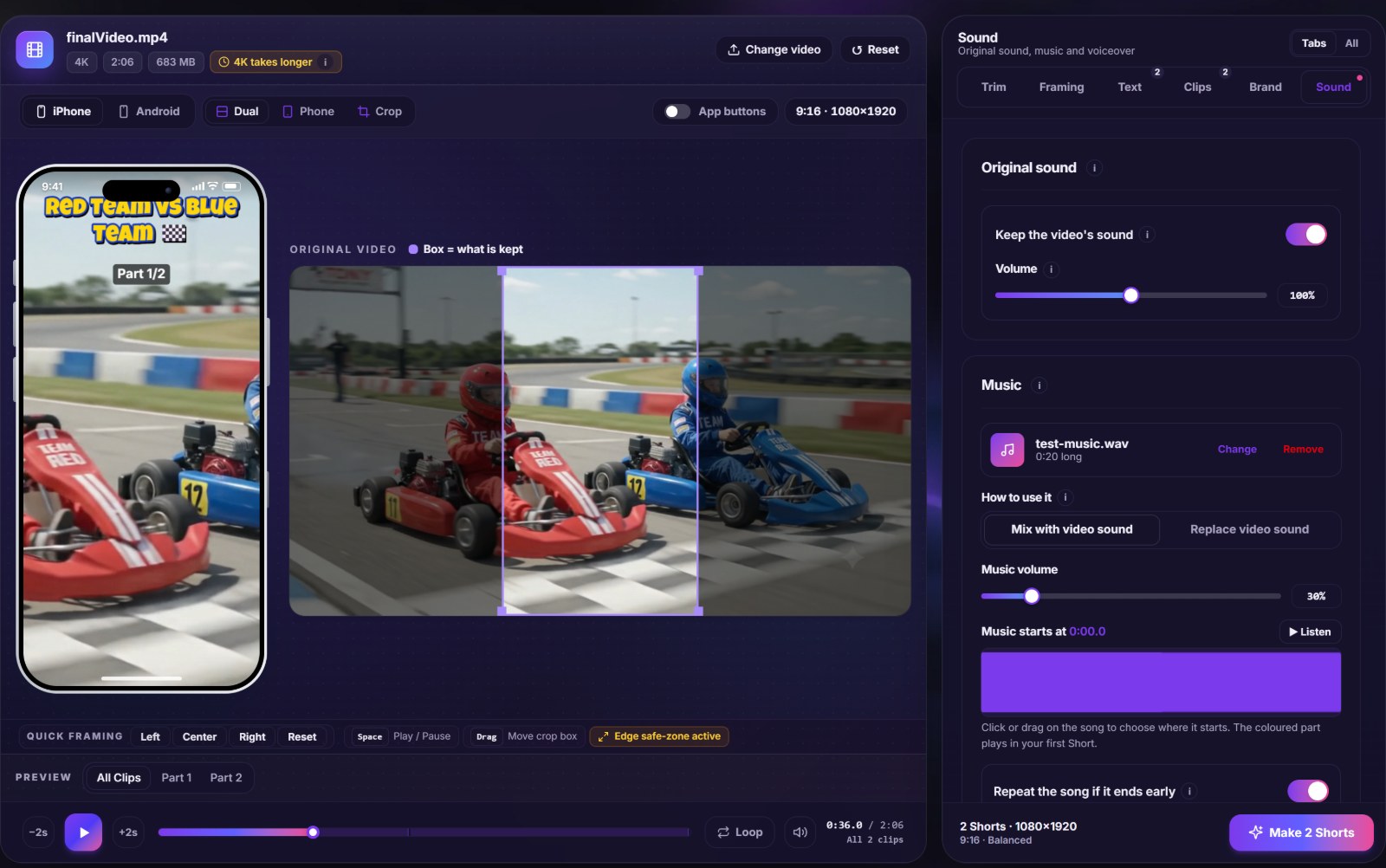
- Open the Sound tab and pause the video where your voice should start.
- If you want to hear the video while you talk, turn on Hear the video while recording, and wear headphones so the microphone doesn't pick up the speakers.
- Press Record voiceover. A 3-2-1 countdown plays, then the video runs and the microphone records.
- Press Stop, or pause the video, when you're done. Your voice is placed exactly where you recorded it.
- Play it back. Not happy? Record again; the new take replaces the old one.
The first time, the browser asks for permission to use your microphone. If you blocked it by accident, click the microphone or camera icon in the address bar, allow it, and try again.
5. Mix it so people can hear you
A voiceover that fights with the original sound or a song is worse than no voiceover. Three settings fix most of it:
- Turn the original sound down if it competes with your voice. Engine noise, wind and crowd noise are the usual culprits.
- Lower the music when people talk. If you've added a song, this makes it dip under your voice and come back in the pauses.
- Fade in and out. A short fade at the start and end avoids an abrupt click.
Small things that make a big difference
- Smile while you talk. It sounds silly, but people can hear it.
- Leave gaps. A voiceover that never stops talking is tiring. Let the best moment of the clip play on its own.
- Say less than you think. A 30-second Short needs maybe three or four sentences, not a paragraph.
- Record a few takes of the first line and keep the one with the most energy.
Common problems and quick fixes
| Problem | Likely cause | Fix |
|---|---|---|
| Sounds hollow | Echoey room | Move to a room with soft furniture |
| Pops on "p" and "b" | Microphone straight in front of your mouth | Angle it slightly to the side |
| Voice too quiet next to the music | Music too loud | Lower the music volume, or turn on the music dip |
| Echo of the video in your recording | Speakers on while recording | Use headphones |
If you're adding music too, read music for Shorts without copyright problems first. The music and voiceover feature page explains every sound setting.