
One video, four apps, and nothing uploaded to us
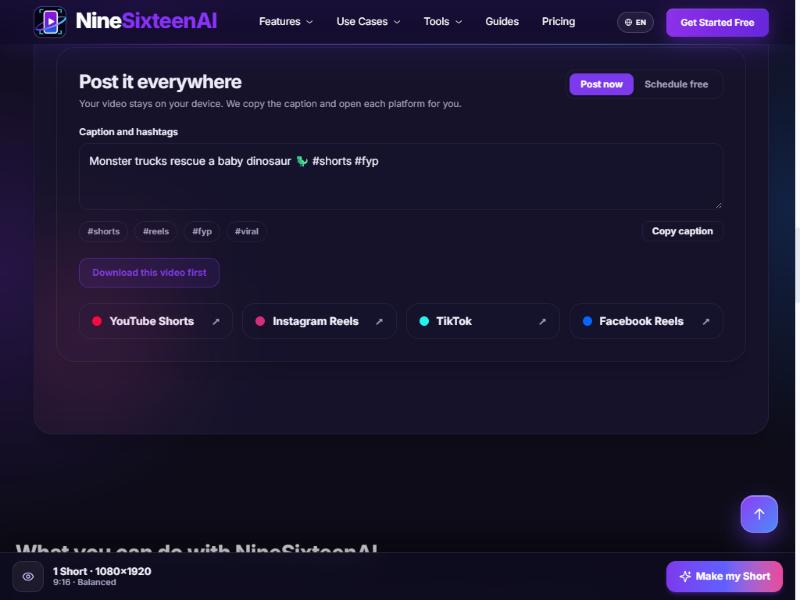
This page is the same converter as the rest of the site with one extra step at the end. When your 9:16 video is ready, a panel called Post it everywhere opens under the result. You write the caption once, press the app you want, and that app’s own upload page opens with your caption already copied to the clipboard.
It helps to be clear about what this is not. It does not sign in to YouTube, Instagram, TikTok or Facebook for you and it cannot publish on your behalf. Doing that would mean connecting your accounts to our servers and sending your video to them, and we chose not to. We get everything ready on your device, and you press the final button on each platform yourself. It is a few extra taps, and your video never leaves your phone or computer until you choose to upload it to an app.
How to post one video to four apps
- Open your video and make your Short. Pick the layout you want and press Make my Short.
- In the Post it everywhere panel, type the caption. The hashtag buttons add #shorts, #reels, #fyp and #viral with one tap each.
- If you cut the video into parts, choose which part you are posting now.
- Press Download this video first. The platforms need the file on your device to upload it.
- Press an app’s button. Your caption is copied, the platform opens in a new tab, and a short tip tells you what to press next. Choose your file there and paste the caption.
You can repeat the last step for the other three apps without writing anything again. If one app needs a shorter caption, edit it after you paste.
On a phone or tablet: Share to apps
Most Shorts and Reels are posted from a phone, so on phones and tablets the panel adds a Share to apps button. It opens the share sheet of your phone with the video file attached, and you pick Instagram, TikTok or YouTube from the list. The app opens with your video already in it, so there is no hunting through your gallery.
The button appears only when your browser says it can share that exact file. We ask the browser directly instead of guessing from the device, so a large video that a phone cannot hold in memory simply shows no button, and you use Download instead. On a computer the button is hidden on purpose: the share list on a computer rarely contains Instagram or TikTok, so it would only be confusing. Share sheets always list every app on the phone, not only the four we care about.
Post now or schedule for free
The toggle at the top of the panel switches between Post now and Schedule free. We do not run a scheduler, because that would mean storing your videos until the time arrives. Instead, Schedule free opens each platform’s own free scheduler, and the tip after you press a button says where the scheduling option is.
| App | Post now | Schedule free |
|---|---|---|
| YouTube Shorts | Upload in YouTube Studio | Visibility step, choose Schedule |
| Instagram Reels | Create a Reel in the app | Meta Business Suite, Business or Creator account |
| TikTok | TikTok Studio upload page | Schedule video on the upload page, computer only |
| Facebook Reels | Meta Business Suite reel composer | Choose Schedule instead of Publish now |
Each scheduler has its own rules, and we explain them in separate guides: YouTube Shorts, Instagram Reels, TikTok and Facebook Reels. For the whole workflow in one place, read how to post one video to all four apps.
What we checked, and what can change
We tested the panel by exporting a 46-second vertical clip and pressing every button, in a normal window and at phone width. The caption copied each time, the tips changed with the Post now and Schedule free choice, and each button opened the page named in the table above. We checked the platform facts against their own help pages in November 2026. One thing we could not test is the real share sheet on a phone, because it needs a physical phone with the apps installed, so it is the part to try first on your own device.
Platforms rename buttons and move pages without warning. If a screen does not look like our tip, the platform’s help page is the final word, and the caption stays on your clipboard in the meantime.